How to Set Up a Matter-Compatible Smart Home Device
Matter was supposed to make smart home setup painless. And honestly? Most of the time it does. The catch is knowing the right sequence up front. So here is how I add a Matter device without the pairing headaches that used to eat my evenings.
📌 Related reading: 2026 Best Smart Home Hubs: Alexa vs Google vs Apple
In This Guide

Steps
Step 1: Confirm the Device Has a Matter Logo or Certification
Before you assume anything, look for the official Matter mark. Check the box. Check the product page. Not every “smart home compatible” gadget is actually Matter-certified, and that gap trips people up constantly. The certification comes from the Connectivity Standards Alliance. That is the industry group that maintains the Matter spec. Trust that mark over marketing copy that only says a device “works with” some ecosystem. The two are not the same thing.
Step 2: Update Your Hub App to the Latest Version
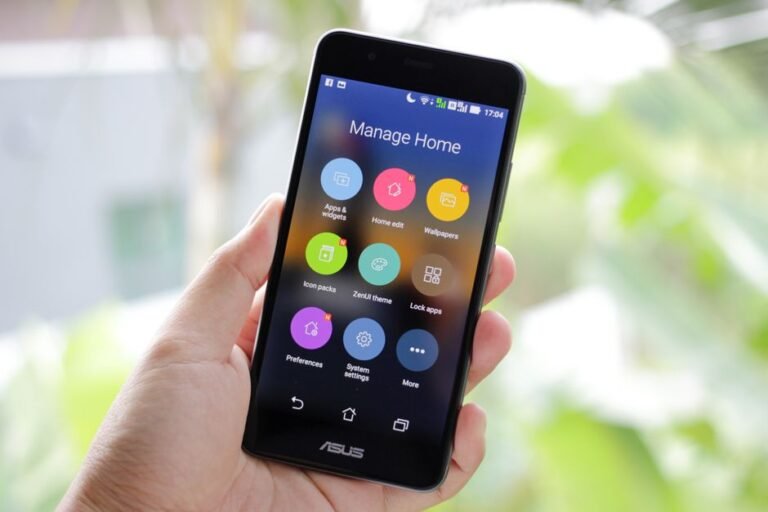
Open your Alexa, Google Home, or Apple Home app. Make sure it is fully updated. I cannot stress this enough. Matter support has improved a lot across updates, and an outdated app quietly causes pairing failures. I learned this the annoying way. On an older phone that had not auto-updated in a few weeks, the pairing screen refused to see a brand-new Matter device. The device was fine. The app was stale. One update later, it paired on the first try.
Step 3: Put the Device Into Pairing Mode
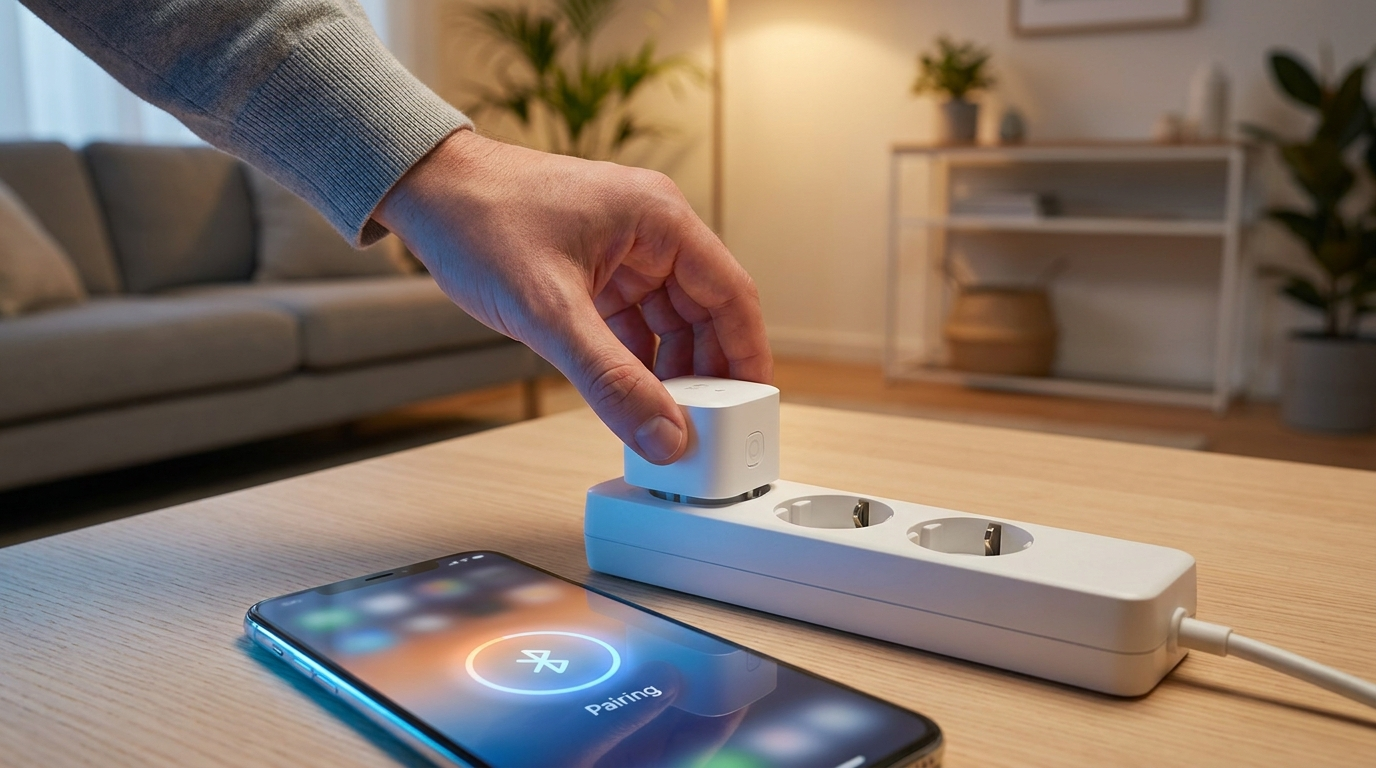
Now follow the manufacturer’s button sequence to enter pairing mode. Usually it is a long-press. Timing varies, though, so do not assume. Watch for a short blinking light, often amber or blue. That blink usually means the device is broadcasting and ready to be found. The exact color code differs by brand. So give the included quick-start card a glance. Ten seconds there saves you real frustration.
Step 4: Scan the Matter QR Code or Enter the Setup Code
In your hub app, tap “Add Device.” Then scan the Matter QR code printed on the device or its packaging. Scan not working? No problem. Enter the setup code by hand instead. It is usually an 11-digit numeric code sitting right beneath the QR code, on the same label. So you are not hunting through a separate manual for it. It is right there.
Step 5: Assign the Device to a Room and Test Automation
Once it pairs, drop it into the correct room in your app. Then run a quick manual test before you build anything around it. This part is easy to skip. Do not. Test the basic on/off or open/close first, before you layer on a routine or a voice command. Why? Because if an automation breaks later, you will instantly know whether it is the device or your logic. That saved me an hour of blind troubleshooting once.
Step 6: Decide Whether to Share the Device Across Multiple Ecosystems
Here is one of Matter’s genuinely good ideas. Multi-admin support. It lets you control the same device from more than one ecosystem at once, say Alexa and Google Home together. But do not assume it just works. Not every hub has fully rolled this out yet. So dig into your specific app’s settings for a “share device” or “multi-admin” option first. Support is uneven right now.
Tips
- ✅ Keep the device close to your Wi-Fi router or Thread border router during that first setup. Distance causes more grief than people expect.
- ✅ Pairing failed? Restart both the device and your phone before you try again. That alone clears most first-attempt failures for me.
- ✅ A Matter device can usually live in more than one ecosystem. Just confirm your specific hub’s multi-admin support before you count on it.
- ✅ Juggling a growing pile of smart home gear? An AI-based automation assistant can help sort your routines — see our roundup of the 2026 best AI tools for everyday productivity for options worth trying.
- ✅ Once everything runs smoothly, check whether the device is quietly adding to standby power draw — our guide on reducing your smart home’s standby power usage covers the usual culprits.
Warnings
⚠️ Watch the older gear. Some “smart home compatible” devices are not Matter-certified at all, even when the marketing language sounds nearly identical. If cross-platform compatibility matters to you, verify the certification before you buy, not after. ⚠️ One more thing. A firmware update landing mid-setup can interrupt pairing. If a device seems to hang partway through, do not yank it. Wait a few minutes. Let any background update finish, then restart the process.
Q&A
Do I need a separate Thread border router for Matter devices?
Only for the Thread-based ones, which you often see with certain sensors and locks. Plenty of Matter devices run on Wi-Fi and skip the router entirely. Check the device’s connectivity type first.
Can I switch a Matter device between ecosystems later?
Usually, yes. The exact steps differ from hub to hub. And some hubs go further, letting a single device run across multiple ecosystems at the same time through multi-admin.
What happens if my Wi-Fi router changes or I move?
Plan to re-pair. Most Matter devices treat a new network the way any Wi-Fi gadget would, so you will redo the setup steps above. There is no magic automatic transfer. Budget a few minutes for it.
Frequently Asked Questions
What if pairing stalls because my phone is on the wrong Wi-Fi band?
Many Matter devices only join a 2.4 GHz network during setup, not 5 GHz. If commissioning hangs, temporarily put your phone on the 2.4 GHz band or the same SSID as the device, then try pairing again.
Can older non-Matter devices work alongside my Matter ones?
Yes, they keep running through their original app or integration, but they will not gain Matter’s cross-ecosystem benefits on their own. Some hubs can expose them to other platforms through a Matter bridge, so check whether your hub supports bridging.
What if a device is Matter-certified but still will not appear in my hub?
First confirm the hub’s app and firmware are current, then make sure the device is not already commissioned elsewhere, since a Matter device must be factory-reset before it can be re-paired. If it still fails after a reset, the manufacturer’s support page is the next place to check.
Sources: Connectivity Standards Alliance — Matter, Google Nest Help — Matter Devices, Apple Developer — Apple Home. Fact-checked based on public sources as of July 20, 2026.