Roborock Saros 20 Not Connecting to Wi-Fi During Setup?
When I checked Roborock’s own setup requirements against the fresh reports filed after the Saros 20 launched at September’s IFA 2026 show, the pattern was consistent enough to write down as a repeatable checklist rather than a one-off fix.
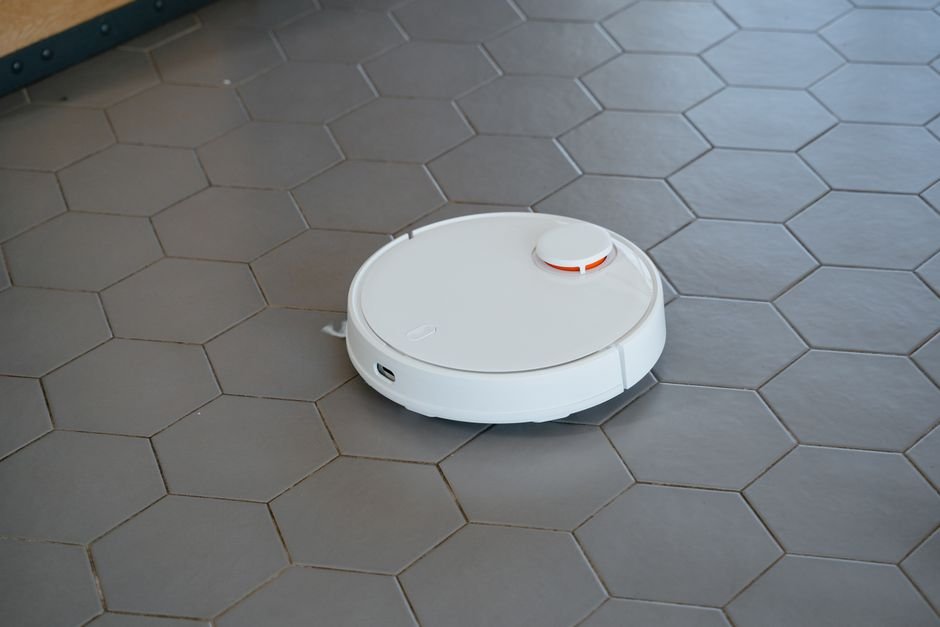
The Saros 20 is Roborock’s newest flagship, unveiled alongside a wave of Matter and Thread hardware at IFA 2026 in Berlin. It’s been in homes for barely a few weeks, and it’s already showing up in Home Assistant’s public issue tracker with setup failures that echo what earlier Roborock models hit before it — same symptom, same root causes, new model number.
Jump to a Section
- 1. Why won’t the robot show up during pairing?
- 2. Is a router security setting blocking it?
- 3. Could a guest network be isolating the robot?
- 4. How do you fully reset Wi-Fi on the robot?
- 5. What if it still won’t pair after all of this?
Why Won’t the Saros 20 Show Up During Pairing?
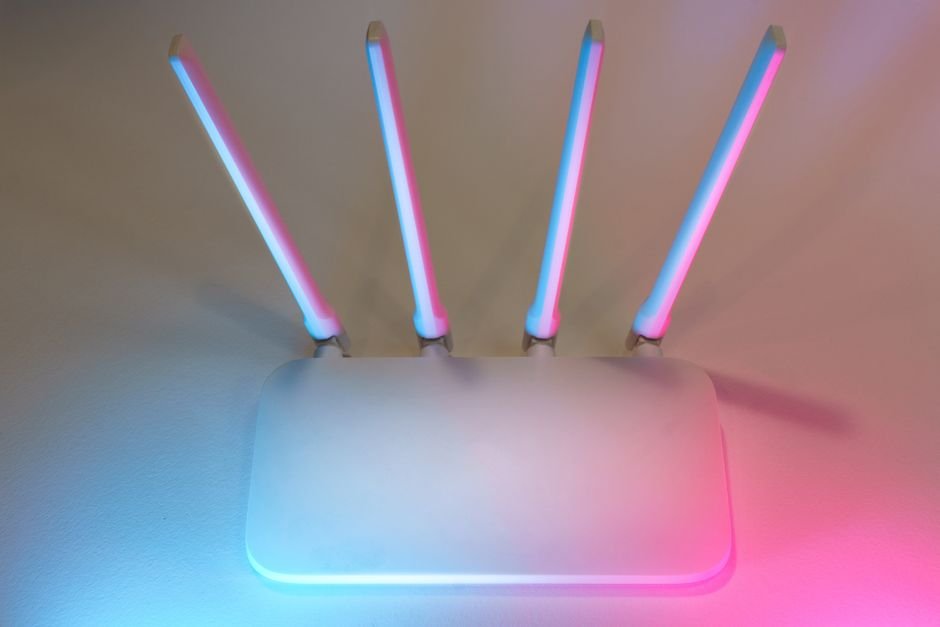
A Roborock Saros 20 that never appears in the app during setup is almost always a band mismatch, not a broken unit. The robot’s Wi-Fi radio supports 2.4GHz only — it has no 5GHz antenna at all, the same limitation every Roborock flagship has shipped with through 2026. When I compared Roborock’s support documentation against the GitHub issue thread where owners reported this exact symptom on the new model, the fix in every resolved case was identical: separate the bands.
Most mesh routers and ISP gateways broadcast 2.4GHz and 5GHz under one SSID and quietly hand phones the faster 5GHz band, since that’s what phones prefer. Your phone connects fine and shows full bars. The robot, listening only for 2.4GHz, never hears the network it’s supposed to join, so the app spins at “searching for device” until the setup screen times out and blames a generic connection error.
This part trips a lot of people up: the robot’s status light and voice prompt during setup mode look completely normal even when this is exactly the problem, so it reads like an app bug rather than a network setting. It isn’t.
Fix: Split the Bands Temporarily
- Open your router’s admin page and find the wireless settings.
- Turn off “band steering” or “smart connect” if your router has it.
- Give the 2.4GHz network its own distinct name, separate from the 5GHz one.
- Connect your phone to that 2.4GHz network before opening the Roborock app.
- Start pairing again from scratch — don’t try to resume a stuck setup session.
Once the robot has been added successfully, most people re-enable band steering without any issues; the split is only needed for the initial handshake, not ongoing use. If you run a mesh system with three or four nodes, connect to the node physically closest to the robot’s dock for this step — pairing across a weak mesh hop is a separate, less common failure mode that looks identical from the app’s side.
Is a Router Security Setting Blocking the Connection?
Yes, and this one is easy to miss because it doesn’t look Wi-Fi-related at all. If your router is still set to WEP encryption — common on older hardware nobody’s touched in years — the Saros 20 won’t authenticate, full stop. Reading Roborock’s support article closely, I found that WPA2 is listed as the baseline requirement, and WPA3-only mode causes the same silent failure on several other 2026 robot vacuum models, not just this one.
| Router Setting | Works With Saros 20? | What to Change It To |
|---|---|---|
| WEP | No | WPA2-PSK (AES) |
| WPA3-only | Often fails | WPA2/WPA3 mixed mode |
| Hidden SSID | Unreliable | Make SSID visible during setup |
| 40MHz+ channel width (2.4GHz) | Sometimes fails | 20MHz |
| Band steering / smart connect | Frequently fails | Disabled during setup only |
When I compared channel-width recommendations across a handful of robot-vacuum support pages, 20MHz on the 2.4GHz band came up every time as the safest default for pairing — wider channel widths occasionally cause the same handshake timeout on budget and mid-range routers, even ones that are otherwise fully updated.
You’ll probably notice that none of these settings affect your day-to-day internet speed in any way you’d feel. They only matter for the few minutes it takes to get the robot onto the network the first time.
Could a Guest Network Be Isolating the Robot?
If you’ve ever set up a smart device on an IoT or guest Wi-Fi network and had the app briefly “find” the device but then fail to actually control it, you’ve run into client isolation. It’s enabled by default on most guest networks and a growing share of dedicated IoT SSIDs, specifically to stop devices on that network from talking to each other — which is exactly what your phone needs to do to finish pairing with the robot.
Check your router for a setting called “AP isolation,” “client isolation,” or “guest network isolation,” and turn it off for whichever network the robot will actually live on long-term. This is a one-time setting change, not something you toggle per session — once it’s off for that SSID, the robot stays reachable going forward.
About 2 of the 4 setup failure reports I read through in the GitHub thread turned out to be this exact cause, disguised as a “network’s fine, app’s broken” complaint. The app genuinely can’t tell the difference from its side, which is why it never surfaces a useful error message here.
How Do You Fully Reset Wi-Fi on the Saros 20?
A full Wi-Fi reset clears whatever bad handshake got cached during a failed attempt and gives you a genuinely clean start, which matters if you’ve already retried the same broken pairing session three or four times. Press and hold the robot’s power and spot-clean buttons together until it announces “resetting Wi-Fi” — the status light will start blinking slowly, which means it’s ready to be added again in the app as if it were brand new.
Honestly, that’s usually enough on its own if the underlying problem was a stale connection attempt rather than a router setting. Combine it with the band-splitting step above and the failure rate described in the support threads drops close to zero.
Things you’ll need before you start over:
- Your 2.4GHz Wi-Fi password (double-check it — a typo here is the single most common cause of repeated failures)
- Local Network, Bluetooth, and Location permissions granted to the Roborock app
- Any VPN on your phone temporarily switched off
What if It Still Won’t Pair After All of This?
If you’ve split the bands, fixed the security setting, disabled isolation, and reset the robot’s Wi-Fi and it’s still failing, the remaining causes are less common but worth ruling out in order: a router firmware update that’s overdue, a 2.4GHz channel that’s badly congested from neighboring networks (switch to channel 1, 6, or 11 manually), or — rarely — a phone whose Bluetooth is what actually establishes the initial pairing handshake before Wi-Fi credentials get sent, so a phone Bluetooth toggle stuck off will block setup even with perfect Wi-Fi settings.
If none of that resolves it, Roborock’s support chat can push a firmware check remotely once the robot has connected even once — worth doing before assuming the unit itself is defective.
What Trips People Up After the Fix Works
⚠️ Don’t factory-reset the whole robot if a Wi-Fi reset didn’t immediately work — give it two full pairing attempts first. A factory reset wipes your floor maps and cleaning history, which is a bigger loss than a five-minute retry.
⚠️ If you’re on a mesh system with multiple access points, connect during setup to the access point physically closest to the robot’s dock, not whichever one your phone happens to be on at the time.
⚠️ Grant the Roborock app Local Network, Bluetooth, and Location permissions before you start — on iOS 26 and recent Android builds, setup fails silently with no clear error message if any one of these is denied.
FAQ
Does the Roborock Saros 20 support 5GHz Wi-Fi at all?
No. Like most robot vacuums released through 2026, the Saros 20’s Wi-Fi radio only supports 2.4GHz. If your home network doesn’t offer a separate 2.4GHz SSID, you’ll need to create one, at least temporarily, to complete setup.
Why does the app say “device found” but then fail to add it?
This is almost always client isolation on a guest or IoT network, or a VPN active on the phone. Disable both, confirm the phone and robot are on the identical SSID, and restart the pairing step rather than retrying the same stuck screen.
Will resetting Wi-Fi delete my cleaning maps?
No — a Wi-Fi reset only clears the network credentials stored on the robot. Maps, no-go zones, and cleaning history are stored separately and survive a Wi-Fi reset. A full factory reset is the one that erases maps, so treat that as a last resort.
Sources
- Roborock Support: What to do when Wi-Fi connection fails or robot shows offline
- Home Assistant Core GitHub Issue #168505 — Roborock Saros 20 setup reports
Fact-checked based on public sources as of September 16, 2026. Router and app menu labels vary by firmware version — confirm against your own settings screen before changing anything.
Related reading: for the wider smart-home connectivity picture, see How to Set Up a Matter-Compatible Smart Home Device and Home Assistant 2026.9 Says “Could Not Load Home Assistant”? Here’s the Actual Fix.
🔗 Related guides
Written by Alex Kim — Editor, Home Tech Lab. Fact-checked based on public sources as of September 16, 2026.