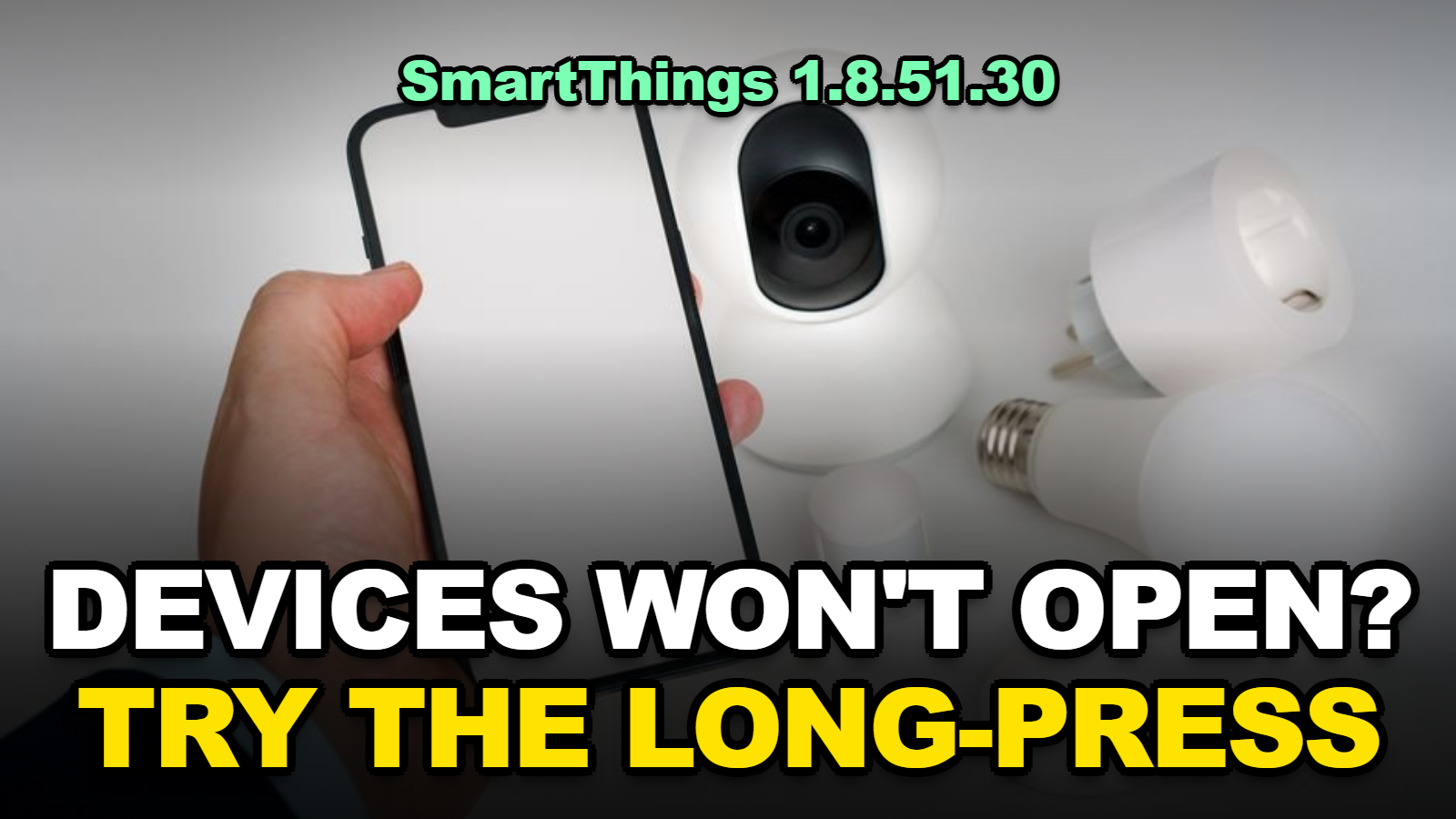
SmartThings Devices Won’t Open After the 1.8.51.30 Update? The Long-Press Fix, the Broken TV Remote, and What Not to Try (2026)
Short answer: The SmartThings Android update 1.8.51.30 changed how device cards work. A single tap often just toggles power now. To reach the full controls, press and hold the card and choose Expand. If a device still won’t open, the TV remote lost buttons, or the app can’t download a controller, Samsung hasn’t posted a fix yet. Use your physical remote or the device’s own panel for now. Report it through the app. Skip unofficial APK downgrades.
Your air conditioner card says On. You tap it to change the fan direction. Nothing opens.
Tap again and it turns off. Then on again.
That’s the experience a lot of Android owners have described since Samsung pushed SmartThings 1.8.51.30 at the end of September 2026. Most devices aren’t broken. The way you get into them moved, and for some devices the door seems to be stuck shut. Here’s how to tell which case you’re in.
What This Covers
- Why won’t my devices open in SmartThings after the update?
- How do I get to full device controls now?
- Why did the SmartThings TV remote stop working or lose buttons?
- What if a device still won’t open at all?
- Fixes That Make Things Worse
- Tips
- Warnings
- FAQ
- Sources
Why won’t my devices open in SmartThings after the update?
SmartThings devices stop opening after the Android 1.8.51.30 update because the redesigned Home screen changed what a single tap does: on many device cards one tap now only switches power, and the full control page sits behind a long-press menu.
The version showed up in the official SmartThings Community thread for Android 1.8.51.30 on September 29, 2026. Users there first noticed new wallpapers, a missing dashboard, and an offline-devices tile that moved to the Menu tab. By October 9, people were asking why tapping a tile no longer showed any controls.
App-review tracker Unstar counted 84 Google Play reviews between October 1 and 9, 2026 that blamed this version. Of those, 21 said tapping a device no longer opened its controls, and 18 were about the TV remote.
| What you see | Likely cause | Try first |
|---|---|---|
| Tap only turns the device on or off | New card behavior in 1.8.51.30 | Press and hold the card, tap Expand |
| Card does nothing, even with long-press | Device page failing to load, often Edge-driver devices | Clear cache, then check on another phone or iPhone |
| TV remote missing buttons or tiny | Redesigned remote layout | Update the TV software, then reopen the remote |
| “Downloading controller” fails for a TV or sound bar | Plugin download error after the update | Wi-Fi check, clear cache, retry |
| All devices vanished | App opened a different Location | Tap the Location name at top left and switch back |
Built from SmartThings Community reports (September 29 to October 11, 2026), Unstar’s review count, and Samsung’s own SmartThings support steps.
How do I get to full device controls now?
To open full device controls in SmartThings 1.8.51.30 on Android, press and hold the device card on the Home or Devices screen and tap Expand, which brings back the detailed page for fan speed, temperature, timers, and other settings.
Method 1: Long-press and Expand
- Open SmartThings and find the device card.
- Press and hold the card for about a second. Don’t tap.
- Tap Expand in the menu that appears.
- Change the setting you wanted, then go back.
When I checked the review quotes Unstar collected, I found that this one reviewer’s discovery was the only workaround anyone posted for the “on and off only” problem. Clunky, yes. But it works for many cards.
Method 2: Go through the Devices tab
- Tap Devices at the bottom of the screen.
- Tap the Location name, then All devices, so you see the full list instead of one room.
- Long-press the device from that list and choose Expand.
Some people find the list view easier because the cards are bigger and the names aren’t cut off.
Why did the SmartThings TV remote stop working or lose buttons?
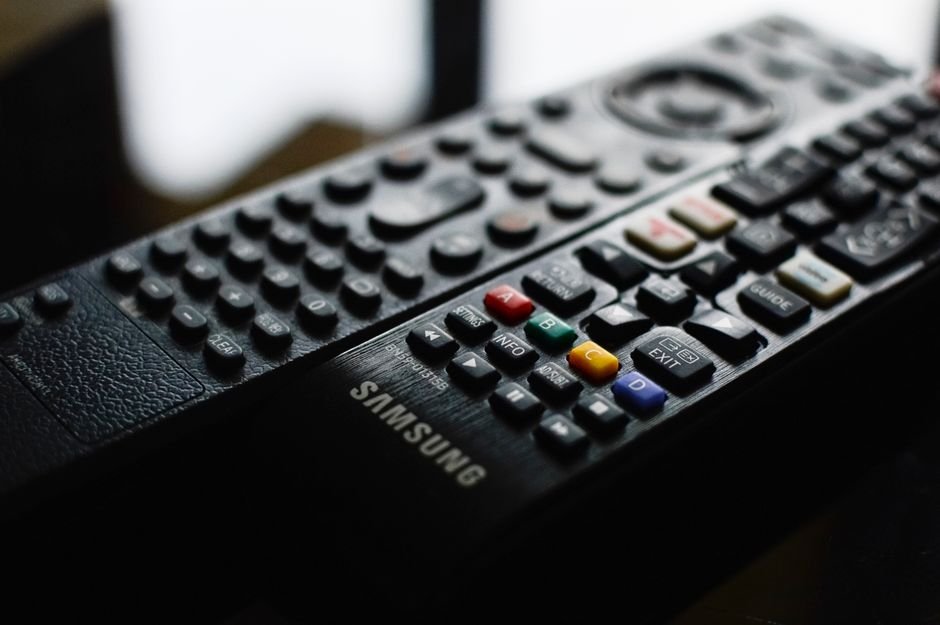
The SmartThings TV remote changed in Android version 1.8.51.30, and Google Play reviews from October 1 to 9, 2026 describe a smaller set of buttons, a TV icon where the power button used to be, and in some cases a controller download for the TV or sound bar that fails.
Samsung hasn’t explained the change publicly. So these steps are about ruling out the parts you control.
Method 3: Update both ends
- Update the TV software. On the TV, press Home, open Settings, then Support, then Software Update. Samsung’s own SmartThings guide lists TV firmware as a step when a TV misbehaves in the app.
- Update SmartThings in Google Play, or inside the app through Menu, SmartThings Settings, About SmartThings. If there’s no Update button, you’re current.
- Check the phone and TV are on the same Wi-Fi. Samsung notes a weak or crowded network can make registration and loading fail.
Method 4: Clear the app cache
- Open Android Settings, then Apps, then SmartThings, then Storage.
- Tap Clear cache. Leave Clear data alone; that signs you out and can lose app-side settings.
- Reopen SmartThings and open the TV again so it retries the controller download.
If the remote opens but the buttons are too small to use, there isn’t a size setting for it yet. Honestly, the plastic remote is the better tool until Samsung adjusts the layout.
What if a device still won’t open at all?
If a SmartThings device still won’t open after long-pressing and clearing the cache on Android 1.8.51.30, the problem is most likely in the app’s device page rather than the device, since community members in October 2026 reported the same devices kept running routines normally.
One user on October 11 said most of their Edge-driver devices wouldn’t open when tapped, while “the devices and routines are working just fine.” That matters. Your automations are probably still running, even if you can’t see the controls.
- Try another phone or the iPhone app. One Play Store reviewer said the same devices opened fine on iOS, which uses a separate version line (1.7.51.30).
- Use routines as a workaround. A routine that sets the thermostat to 70°F or the AC fan to auto can stand in for the missing control page.
- Report it to Samsung. Use the support or contact option on the app’s Menu tab and attach a screenshot. Samsung replied to 25 of the 84 reviews Unstar counted, mostly asking for a reinstall or a support chat.
I noticed that nobody on the community thread had a reply from SmartThings staff as of October 11. Don’t wait on the forum for an official answer.
Fixes That Make Things Worse
A few common moves cost people more time than they saved.
- Force-stopping in a panic. One community member wrote that a force stop “deleted all my devices.” It hadn’t. The app had reopened on a different Location. Tap the Location name at the top left to switch back.
- Deleting and re-adding devices. You’ll lose the device from every routine and scene. Fix the app first.
- Sideloading an older APK. One user restored function by installing 1.8.47.24 from outside Google Play. Unofficial APK sites are a common malware route, and Play will try to update it again anyway.
- Factory-resetting the TV. That’s a last resort for a TV problem, not for an app redesign.
If your devices show offline rather than unopenable, that’s a separate issue. Our guide to SmartThings devices offline after the 0.62.7 hub update covers it.
Tips
- Pin your most-used device to Favorites so the long-press route is one screen away.
- Turn off SmartThings Now suggestions in Edit Home if the top of the screen feels crowded; community users say dismissed suggestions stay gone for a while.
- Offline diagnostics moved to the Menu tab. That’s where the old offline-devices count went.
- Turn off auto-update for SmartThings in Google Play only if you understand you’ll miss security fixes too.
Warnings
- Don’t install SmartThings APKs from mirror sites. You’d be giving an unknown app access to your locks, cameras, and garage door.
- Don’t tap repeatedly on an appliance card. Several reviewers said they turned their AC off three times trying to open it.
- Samsung hasn’t confirmed a fix date. Treat any “fixed in the next version” claim you see as a guess until the Play Store changelog says so.
FAQ
Is the SmartThings iPhone app affected too?
The iPhone app got its own redesign as version 1.7.51.30 in September 2026, and community members reported layout changes there as well. At least one reviewer said devices that would not open on Android opened normally on iOS.
Will my SmartThings routines still run if a device will not open?
Usually yes. Community reports from October 2026 say devices and routines kept working even when the device page would not open, because the problem is in the app screen rather than the hub or the cloud.
How do I check which SmartThings version I have?
Open SmartThings, tap Menu, then the Settings icon, then About SmartThings. The version number is shown there, and an Update button appears only if a newer version is available.
Sources
- SmartThings Community — Android App Version 1.8.51.30 (September 2026)
- Samsung Support — What to do if a registered TV on the SmartThings app disappears
- Unstar — SmartThings update review analysis (October 10, 2026)
- Google Play — SmartThings app listing
🔗 Related guides
- SmartThings Devices Still Showing Offline After the 0.62.7 Hub Update? Here’s the Actual Fix (2026)
- SmartThings API Goes Paid in October 2026: Will Home Assistant Stop Working, and Should You Pay $4.99?
- ChatGPT Answers Turned Into Charts and Widgets? How to Get Plain Text Back After the GPT-6 Intelligent UI Update (2026)
Fact-checked against the SmartThings Community, Samsung Support, and Google Play as of October 12, 2026. Samsung had not published an official fix at the time of writing.