Clock Still Off After DST Ends? Fix It Device by Device
Short answer: Clocks in most of the US fall back one hour at 2:00 a.m. on Sunday, November 1, 2026. Phones and PCs normally fix themselves overnight. Smart speakers and thermostats usually do too. When one does not, the cause is almost always a stale home address or a time zone picked by hand. Fix the location first. Then restart the device. Microwaves and wall clocks still need a human.
Sunday morning you will wake up to at least one clock that is lying to you.
The phone will be right. The microwave will be wrong, which you expected. The surprise is the Echo Show that still says 7:40 when it is 6:40, or the Nest schedule that turns the heat on an hour later than it did last week. Those are the ones people search for at breakfast.
Below is the device-by-device fix, built from the manufacturers’ own help pages plus the workarounds that keep coming up in user forums. Start with the device that is bothering you and skip the rest.
On This Page
- When Do Clocks Fall Back in 2026?
- Which Devices Reset Themselves and Which Never Will?
- Why Is My Echo Still an Hour Off?
- How Do You Fix the Clock on a Google Nest Speaker or Thermostat?
- Why Is the Nest Heating Schedule Running an Hour Late?
- Which Toggle Fixes a Windows PC or iPhone Clock?
- A Sunday Morning Walkthrough
- Tips
- Warnings
- FAQ
- Sources
When Do Clocks Fall Back in 2026?
According to the National Institute of Standards and Technology (NIST), US daylight saving time ends at 2:00 a.m. local time on the first Sunday of November, which in 2026 is Sunday, November 1 (nist.gov). At that moment 2:00 a.m. becomes 1:00 a.m. and the hour repeats.
The same NIST page lists who sits this one out. Hawaii and most of Arizona skip it. So do American Samoa, Guam, Puerto Rico and the US Virgin Islands. The Navajo Nation inside Arizona is the exception and does change its clocks.
Clocks go forward again on the second Sunday of March. In 2027 that is March 14.
One detail matters for troubleshooting. The change is defined in local time. A device that thinks it lives in a different zone than you do will switch at the wrong moment, or not at all. That is why nearly every fix below starts with the address.
Which Devices Reset Themselves and Which Never Will?
Any device that gets its time from the internet or a cell network and knows its location will reset itself overnight, while anything with a clock you set by pressing buttons will keep the old hour until you change it.
When I compared the help pages from Microsoft, Apple, Google and Amazon side by side, the pattern was the same everywhere. None of them let you type in the time on a connected device. You give them a location and they derive the time from it.
| Device | Changes on its own? | What controls the time | First thing to check if wrong |
|---|---|---|---|
| iPhone, Android phone | Yes | Network time plus location for the zone | Set Automatically toggle; time zone location permission |
| Windows PC, Mac | Yes, if automatic time zone is on | Internet time server plus time zone setting | Set time zone automatically; DST toggle if zone is manual |
| Amazon Echo, Echo Show | Yes | Device location and time zone in the Alexa app | Device Location address; Time Zone on screen models |
| Google Nest speaker or display | Yes | Home address in the Google Home app | Home address; restart the device |
| Nest thermostat (connected) | Yes | Location set in the Nest or Google Home app | Zip or postal code under Home info |
| Nest thermostat (no Wi-Fi) | No | Whatever you set on the dial | Set date and time by hand |
| Microwave, oven, coffee maker | No | Buttons | Hold the clock button and re-enter |
| Wall clocks, older car dashboards | No | You | Move it back an hour |
Table: compiled from the NIST DST page and the Microsoft, Apple, Google Nest and Amazon help pages linked below, checked October 31, 2026. Radio-controlled “atomic” wall clocks are the exception in the last row and usually catch up on their own within a day.
Here’s where people get tripped up. A connected device that shows the wrong time is not broken. It is confidently keeping the right time for the wrong place.
Why Is My Echo Still an Hour Off?
An Amazon Echo that stays an hour off after the November 1 change usually has an old or incomplete device address, because Alexa derives the device time from the location stored in the Alexa app rather than from a clock you set.
Amazon’s help page for Echo devices with a screen says that if you have moved to a different time zone you should go to Settings, then Device Options, select Time Zone and make sure it reflects your correct location (Amazon help: update device location on Echo devices with a screen). You get there by swiping down from the top of the screen or by saying “Go to settings.”
For an Echo Dot or any speaker without a screen, the fix lives in the app. Amazon’s own steps for changing a device location (Amazon help: change your Alexa device location) run like this:
- Open the Alexa app and select Devices.
- Pick the Echo that is wrong. Open Device Settings.
- Choose Device Location.
- Enter the complete street address. Select Save.
I noticed that Amazon’s page does not promise the clock updates the instant you save. Ask “Alexa, what time is it?” after saving. If the answer is still wrong, unplug the speaker for 30 seconds and ask again.
Still wrong? Two workarounds show up repeatedly in user threads, and I am passing them along as reports rather than official advice:
- Nudge the zone. Several users on an iFixit thread about an Echo that skipped the DST change report that picking a time zone one hour away in the device settings and then switching back forced the clock to refresh.
- Swap the zone name. The same thread points to two near-identical entries in the time zone list, one filed under “America” and one under “US.” Users say choosing the other one cleared the stale offset. One commenter noted it did not work on an Echo Show, so treat it as a five-second experiment, not a guarantee.
Honestly, the address fix handles most of it.
How Do You Fix the Clock on a Google Nest Speaker or Thermostat?
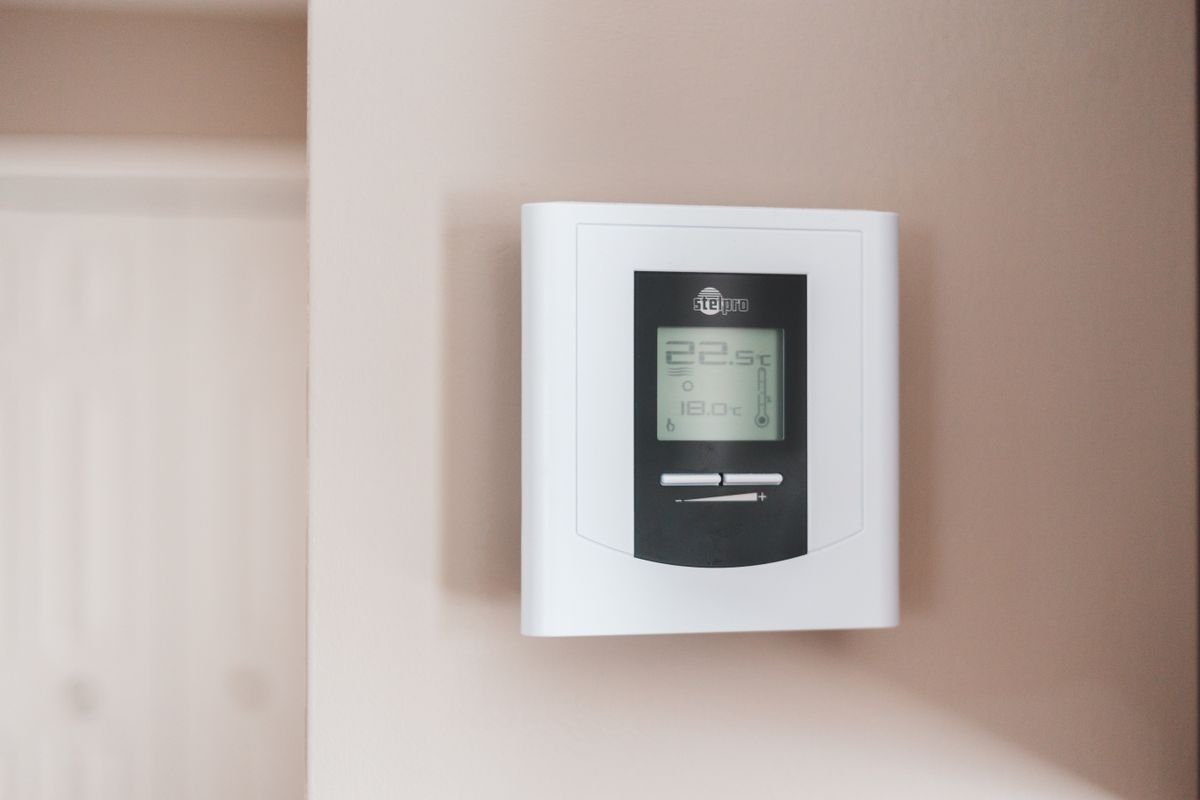
Google’s Nest thermostat help page states that a thermostat connected to the app and Wi-Fi sets the date and time automatically from your location and also adjusts for daylight saving time based on your time zone, so a wrong clock means the location is wrong (Google Nest Help: Nest thermostat settings).
The official fix on that page is short. Update your zip or postal code in the Nest app under Settings, then Home info, then Address. The thermostat’s own Date & Time menu only switches between a 12-hour and 24-hour display. You cannot type the time in there while the thermostat is online.
If the thermostat is not connected to Wi-Fi at all, Google says you set the date and time manually on the device. That is the one Nest situation where the November 1 change is entirely on you.
Nest speakers and displays work the same way, just through a different app. Google’s replies in its support community say the devices base their time on the home address saved in the Google Home app. Check that address first. Then restart the speaker by unplugging it for a few seconds.
When I checked the community threads on wrong times, most of the stubborn cases involved regions that had recently changed or dropped daylight saving rules, such as Mexico. The workaround users describe there is to temporarily set the home address to a city one time zone over, then set it back. It is a blunt tool. It also throws off weather and commute cards, so undo it as soon as the clock is right.
If your speaker is also answering with “Sorry, I didn’t understand” more than usual this week, that is a separate issue. See our fix for the October 29 Google Home update before you blame the time change.
Why Is the Nest Heating Schedule Running an Hour Late?
A Nest thermostat whose clock is correct but whose heating schedule now fires an hour late after the clock change is a problem users have reported for years, and the reliable fix is to open the schedule in the app and move the affected times back by hand.
The reports go back to a 2015 incident in the UK that TechHive covered under the headline “Nest users get a chilly awakening,” and newer threads in the Google Nest community describe the same symptom after clock changes in 2021 and later. Google’s own help pages do not mention daylight saving time in connection with schedules, so there is no official explanation to quote.
What you can do is edit the schedule directly. Google’s schedule page for the Nest Thermostat and the 4th-gen Nest Learning Thermostat (Google Nest Help: temperature schedules) describes it this way. Open the Google Home app and select the thermostat. Go to the schedule and choose the day. Tap the temperature entry that is running late. Then touch and drag the numbers to change the time. Adjacent entries must be at least 60 minutes apart. If a slot refuses the new time, move the neighbouring entry first.
Older models edit the schedule in the Nest app instead. Same idea.
Two more things users report trying when the shift will not stick: turning off Auto-Schedule and rebuilding the schedule from scratch, and in one thread Google support walked a user through a thermostat reset. A reset wipes your settings, so leave it for last.
Most people skip the schedule check and just notice the house is cold Monday morning.
Which Toggle Fixes a Windows PC or iPhone Clock?
Microsoft’s Windows support page states that when Set time zone automatically is on, daylight saving time is handled for you, and that the separate Adjust for daylight saving time automatically toggle only applies when automatic time zone is off (Microsoft Support: set time, date and time zone settings).
That one sentence explains most Windows complaints this weekend. People turned off automatic time zone at some point, often because a VPN kept flipping it, and then never turned on the DST toggle.
The path is Start, then Settings, then Time & language, then Date & time. Turn on Set time automatically. Then either turn on Set time zone automatically, or leave the zone manual and turn on Adjust for daylight saving time automatically. If the clock is still an hour off, switch Set time automatically off and on again to force a resync.
I found that the Windows page is the only one of the four manufacturer pages that mentions DST as its own setting. Everyone else buries it inside location.
On an iPhone or iPad, Apple’s fix lives under Settings > General > Date & Time. Turn on Set Automatically. Apple says that setting picks the date and time based on your time zone (Apple Support: if the date or time is wrong on your iPhone or iPad).
The zone itself comes from location. Apple points to Settings > Privacy & Security > Location Services. Scroll to System Services at the bottom. Setting Time Zone needs to be on.
Two Apple details catch people. If you see a message that updated time zone information is available, restart the phone and any paired Apple Watch. And if Set Automatically is greyed out, Apple says a Screen Time passcode or a corporate device profile is the likely reason, not a bug.
A Sunday Morning Walkthrough
Do this in order and you will be done before the coffee is.
- Trust the phone. Confirm it shows the new hour. If not, fix the phone first using the Apple steps above or the equivalent automatic date and time setting on Android.
- Ask every speaker the time. “Alexa, what time is it?” and “Hey Google, what time is it?” in each room. Note which ones disagree with the phone.
- Fix locations, not clocks. Device Location in the Alexa app. Home address in the Google Home app. Zip code under Home info for a Nest thermostat.
- Power-cycle the stragglers. Thirty seconds unplugged is enough.
- Open the thermostat schedule. Check that the morning warm-up time still reads what you expect.
- Walk the house. Microwave, oven, wall clocks, the car. These are the ones you will still be fixing in December if you skip them now.
If you also run a SmartThings hub, this is a good moment to check its automations too. Hub routines keyed to a clock time rather than sunrise can drift the same way, and the recent SmartThings app update already has some users rebuilding routines.
Tips
- Fix the address before touching anything else. Every manufacturer page points there first.
- Use the phone as the reference clock. It is the device most likely to be right at 7 a.m. Sunday.
- Set a reminder for the second Sunday of March. The same devices that lagged this time will lag again then.
- Take a photo of your thermostat schedule before Saturday night. It makes an off-by-one-hour shift obvious.
Warnings
- A full device reset erases your settings. Try address, restart and the zone nudge before resetting a Nest thermostat or Echo.
- Setting a fake home address to force the clock also changes weather, traffic and sunrise-based automations. Change it back once the time is right.
- Arizona and Hawaii households with a device set to a mainland address will see the opposite problem: a clock that jumps when it should not. The fix is the same address check.
- Menu names shift with app updates. If a step does not match what you see, search the setting name inside the app rather than giving up.
FAQ
Do Echo and Google Nest devices change for daylight saving time automatically?
Yes, as long as the device location stored in the Alexa or Google Home app is correct. Both companies derive the device clock from that location. A wrong or outdated address is the usual reason a speaker stays an hour off.
Does Arizona change its clocks on November 1, 2026?
Most of Arizona does not observe daylight saving time, so nothing changes there. The Navajo Nation inside Arizona does observe it and falls back with the rest of the country, according to NIST.
Why is my Windows clock right but the time zone label wrong after the change?
This usually means Set time zone automatically is off and the zone was picked by hand. Turn automatic time zone back on, or keep the manual zone and enable Adjust for daylight saving time automatically, then let the clock resync.
Sources
- NIST — Daylight Saving Time rules and 2026 dates
- Microsoft Support — Set time, date and time zone settings in Windows
- Apple Support — If the date or time is wrong on your iPhone or iPad
- Google Nest Help — Nest thermostat settings (date, time and location)
🔗 Related guides
Fact-checked against the NIST, Microsoft, Apple, Google Nest and Amazon help pages linked above as of October 31, 2026. Forum workarounds are reported as user experiences, not manufacturer guidance. Menu names change with app updates.