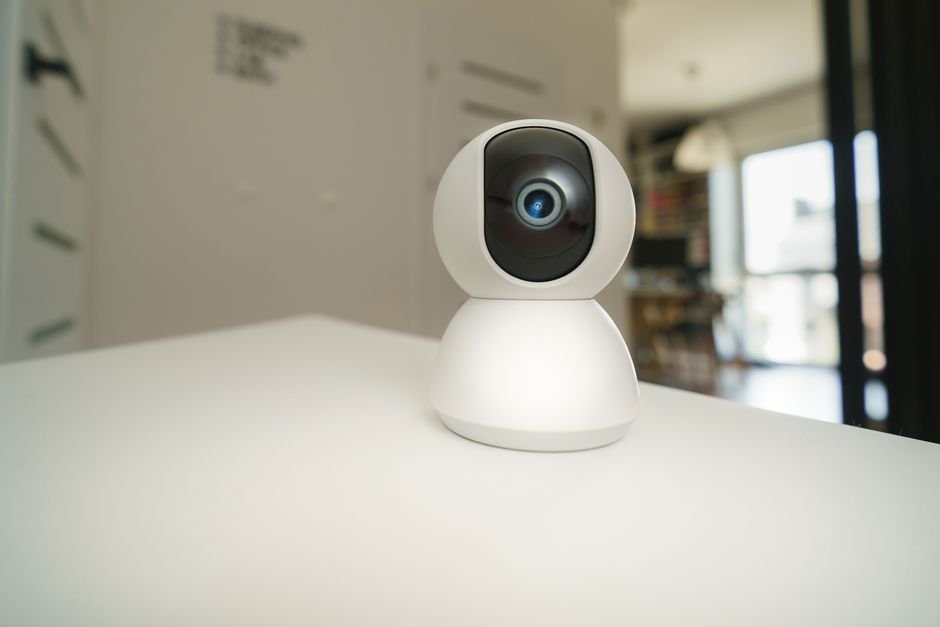
Wyze Indoor Cam Pan Setup Keeps Failing? Firmware 2.1.0.133 Fixes WPA3 Routers, but Here’s How to Get It Online First (2026)
Short answer: Wyze released firmware 2.1.0.133 for the Indoor Cam Pan on October 12, 2026. It fixes setup failures caused by WPA3 compatibility problems with certain routers. The catch: a camera that won’t finish setup can’t download that update. So get it online first. Use a 2.4 GHz network. Switch your router’s security to WPA2, or WPA2/WPA3 mixed, just for setup. Then install 2.1.0.133 and switch your router back.
The Wyze Indoor Cam Pan is barely seven weeks old, and its first big fix is for the step most people never get past.
Wyze launched the camera on August 25, 2026, at under $40, as 9to5Google reported at launch. On October 12, Wyze’s firmware release notes added version 2.1.0.133. The top line reads: “Fixed setup failures caused by WPA3 compatibility issues with certain routers.”
Good news if your camera is already connected. Not much help if it’s sitting on your desk flashing red. Here’s how to get around that.
What’s Covered
- What does Wyze Indoor Cam Pan firmware 2.1.0.133 fix?
- Why does the Wyze Indoor Cam Pan fail on WPA3 routers?
- How do you set up the camera when setup keeps failing?
- Reading the Status Light During Setup
- Still Failing After the Router Change? Check These
- Should you return it instead?
- Tips
- Warnings
- FAQ
- Sources
What does Wyze Indoor Cam Pan firmware 2.1.0.133 fix?
Wyze Indoor Cam Pan firmware 2.1.0.133, released October 12, 2026, fixes setup failures caused by WPA3 compatibility issues with certain routers, other router-related setup failures, and delayed status sync during setup, according to Wyze’s release notes.
The full list from Wyze:
- Fixed setup failures caused by WPA3 compatibility issues with certain routers.
- Fixed setup failures with certain routers.
- Improved Bluetooth and Wi-Fi connection handling during setup.
- Fixed setup failures caused by delayed status synchronization.
- Fixed occasional restarts when viewing through the web interface.
Four of the five items are about setup. That tells you how common the problem was.
Why does the Wyze Indoor Cam Pan fail on WPA3 routers?
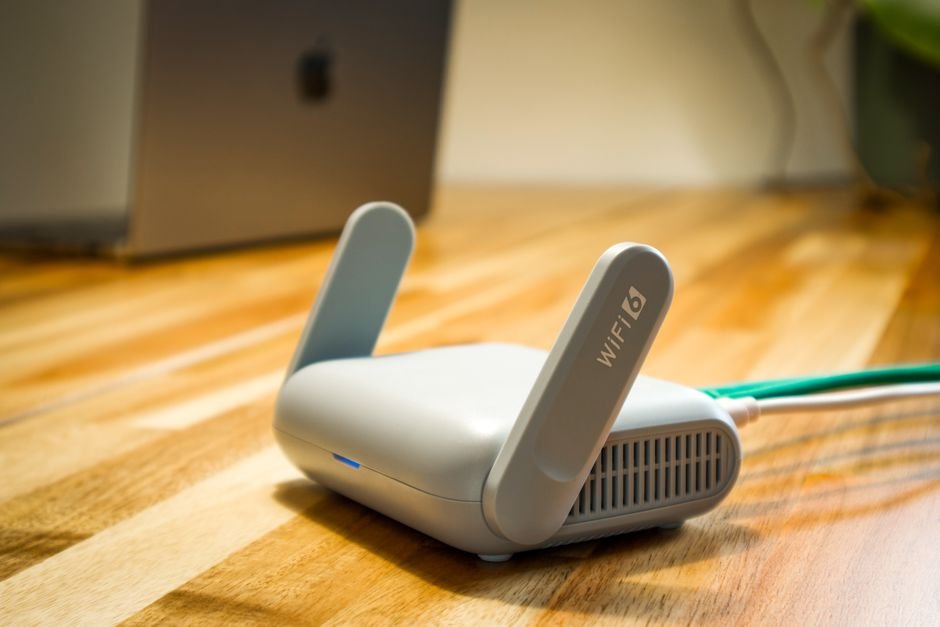
Wyze’s tech specs for the Indoor Cam Pan list support for WPA and WPA2 security on 2.4 GHz Wi-Fi only, so routers set to WPA3, or some WPA2/WPA3 mixed setups, can stop the camera from joining during setup.
When I checked Wyze’s Indoor Cam Pan tech specs page, I found that WPA3 isn’t in the supported list at all. It says “Supports WPA and WPA2 protocols” on 802.11 b/g/n 2.4 GHz.
That matters because a lot of newer routers turn on WPA3 by default, or run a “transition” mode that offers WPA2 and WPA3 together. The Wi-Fi Alliance describes WPA3 as the current generation of Wi-Fi security. It’s the right default for laptops and phones. Cheap smart home gear often lags behind.
Wyze’s release note says “certain routers,” not all WPA3 networks. Wyze hasn’t said which router models or modes were affected. So treat the router change below as a setup workaround, not a permanent setting.
How do you set up the camera when setup keeps failing?
To set up a Wyze Indoor Cam Pan that keeps failing on a WPA3 router, temporarily switch the router’s 2.4 GHz network to WPA2 or WPA2/WPA3 mixed mode, complete setup, install firmware 2.1.0.133, and then restore your original security setting.
Here’s the problem in one line. A factory reset clears Wi-Fi settings but keeps the current firmware, per Wyze’s reset guide. So resetting won’t pull in the fix. The camera has to get online once on its old firmware.
Method 1: Change the router’s security mode for setup
- Log in to your router’s app or admin page. Find the wireless security setting for the 2.4 GHz band.
- Write down the current setting. You’ll put it back later.
- Switch to WPA2-Personal, or “WPA2/WPA3 Personal” if that’s the closest option. Save and let the router restart.
- Reconnect your phone to the same 2.4 GHz network. Wyze says the phone must be on the same 2.4 GHz network you pick during setup.
- Factory reset the camera. Remove any microSD card. With the camera on, point the lens up and hold the setup button below the lens for 10 seconds until the light turns solid red.
- Run setup in the Wyze app when the light starts flashing red and you hear “ready to connect.”
- Update the firmware. Once it’s connected, check the camera’s settings for a firmware update and install 2.1.0.133. Don’t unplug it while it updates.
- Switch the router back. Then check the camera stays online for a day.
Method 2: Use a separate 2.4 GHz network
- Turn on a guest or IoT network on your router if it has one, set to 2.4 GHz and WPA2.
- Check it doesn’t isolate devices from each other, or the Wyze app may not see the camera on your home network.
- Set up the camera on that network and leave it there. Your main network keeps WPA3.
Honestly, Method 2 is the better long-term setup if you own several cheap smart devices. They all tend to want 2.4 GHz and WPA2.
Reading the Status Light During Setup
The light on the front of the camera tells you exactly where setup stalls. When I compared Wyze’s status-light guide with its setup troubleshooting page, I noticed that each color maps to a different fix.
| Light (before setup) | What Wyze says it means | What to do |
|---|---|---|
| No light | No power | Check the cable and a 5V 1.5A adapter; try another outlet |
| Solid red, won’t change | Powered on and initializing | Use the original cable and adapter, power cycle, then factory reset |
| Flashing red | Ready to connect | Start setup in the app |
| Flashing red and blue | Connecting | If it falls back to flashing red, it’s usually Wi-Fi: band, security mode, or password |
| Flashing blue | Connected and finishing setup, or updating firmware | Wait; don’t unplug |
| Solid blue | Powered and fully connected | Setup worked; now update firmware |
Light meanings from Wyze’s Indoor Cam Pan status-light and troubleshooting pages, checked October 14, 2026. The “what to do” column combines Wyze’s listed steps; the red-and-blue fallback note is our reading of where setup stalls.
Flashing red and blue that drops back to flashing red is the pattern that points at the router. That’s where the WPA3 change helps most.
Still Failing After the Router Change? Check These
Wyze’s setup troubleshooting page lists a few more causes. The ones that trip people up most:
- Phone on 5 GHz. The camera isn’t compatible with 5 GHz networks. If your router uses one name for both bands, your phone may sit on 5 GHz.
- Location or Bluetooth permissions off. The Wyze app needs both. On iPhone, Precise Location has to be on too.
- A VPN running. Turn off any VPN on the phone or router during setup.
- Typos in the network name. The SSID is case-sensitive, with no spaces before or after.
- Too far away. Wyze says keep the camera and phone within 6 to 10 feet of the router during setup.
- Old app. Update the Wyze app before trying again.
Most people skip the 5 GHz check and regret it. It’s the first thing to rule out.
If the camera connects but then stops responding in the app later, that’s a different problem. Our guide to Wyze controls not responding in the app covers it.
Should you return it instead?
A Wyze Indoor Cam Pan that still fails setup after you’ve tried a WPA2 network, a 2.4 GHz connection, and a factory reset is worth returning while you’re still inside the retailer’s return window, since none of the remaining fixes depend on new firmware.
Where you bought it matters. Return windows vary a lot by store. If you’re near the cutoff, don’t spend another weekend on it.
Wyze lists a one-year warranty for the camera on its tech specs page. That’s a fallback, not a reason to keep fighting a unit that won’t connect.
Tips
- Take a screenshot of your router’s security settings before changing anything. It makes switching back painless.
- After updating, check Device Info in the camera’s settings for signal strength. Wyze suggests moving things closer if it’s under 2 bars.
- Pull the microSD card before a firmware update. Wyze lists that as a fix when updates fail.
- If your router has a “smart connect” option that merges both bands, turning it off during setup often helps.
Warnings
- Don’t leave your whole home network on an older security mode just for one camera. Put it back, or use a separate network.
- Don’t unplug the camera while the light is flashing blue. It may be updating.
- Factory reset doesn’t roll firmware back or forward. It only clears settings.
- Avoid “firmware download” sites. Wyze delivers this camera’s updates through the app.
FAQ
Does the Wyze Indoor Cam Pan work with 5 GHz Wi-Fi?
No. Wyze says the Indoor Cam Pan is not compatible with 5 GHz Wi-Fi networks. It connects only on 2.4 GHz, and your phone must be on that same 2.4 GHz network during setup.
How do I check which firmware my Wyze Indoor Cam Pan has?
Open the camera in the Wyze app, go to its settings, and check Device Info, where the firmware version is listed. The version with the October 12, 2026 setup fixes is 2.1.0.133.
Can I keep WPA3 on after the camera is set up?
Possibly. Wyze says firmware 2.1.0.133 fixes WPA3 compatibility issues with certain routers, but its spec page still lists WPA and WPA2 only. Switch back, then watch the camera for a day to confirm it stays connected.
Sources
- Wyze — Release Notes & Firmware (Indoor Cam Pan 2.1.0.133, October 12, 2026)
- Wyze — Wyze Indoor Cam Pan Setup Troubleshooting
- Wyze — Wyze Indoor Cam Pan Tech Specs
- 9to5Google — Wyze Indoor Cam Pan launch (August 25, 2026)
🔗 Related guides
Fact-checked against Wyze’s support pages and firmware release notes and 9to5Google reporting as of October 14, 2026. Firmware rollouts can be gradual; your camera may see the update later.