Wyze Camera, Plug, and Bulb Controls Not Responding in the App? Here’s the Actual Fix (2026)
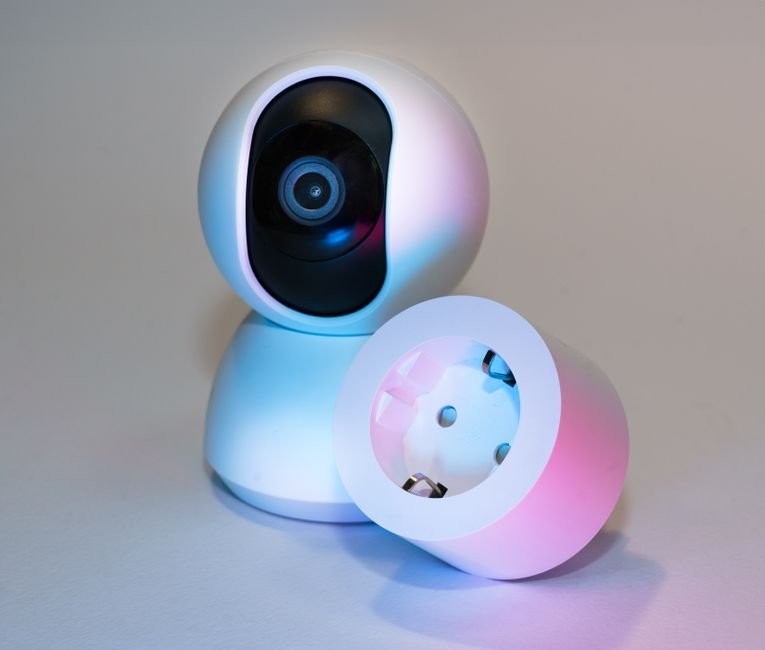
You tap the toggle on a Wyze plug and nothing happens. You open the camera tile and the live view just spins. Reinstalling the app ‘fixes’ it for a day and then the same thing happens again. That loop is the actual complaint behind most of the Wyze forum threads on this — not a single dead device, but controls going unresponsive across multiple device types at once.
Why do Wyze controls suddenly stop responding in the app?
Most of the time, the app is holding a cached device list and session token that no longer matches what the device or Wyze’s servers currently expect. The tile still shows up, the icon still looks normal, but the command you send from the toggle never actually reaches the device — it just times out silently, which is why nothing seems visibly ‘wrong’ until you try to use it.
When I checked Wyze’s own troubleshooting pages for plugs and bulbs side by side, both point to the same first step regardless of device type: confirm the app is fully updated, then force-close and reopen it before touching the hardware at all. That’s a strong signal the app-cache theory is the intended first diagnosis path, not just a forum guess.
Is this a router problem or a Wyze server problem?
Check Wyze’s own status page before assuming it’s your network. If nothing is flagged there and only your household is affected, the cause sits closer to your router than to Wyze’s servers.
Router firmware updates are the most common trigger reported on Wyze’s community forum, specifically when the update merges a 2.4GHz and 5GHz network into a single SSID or shifts the Wi-Fi channel. Wyze plugs, bulbs, and most cameras only speak 2.4GHz — if your router’s update quietly pushed devices onto the 5GHz band under a merged network name, the app can still see the device in your account but can no longer reliably send it commands.
Method 1: Fix it from your phone
Force-close the Wyze app completely
Swipe it away from your recent-apps list rather than just backgrounding it. A simple app switch does not clear the stale session token that’s usually the actual problem.
Confirm you’re on the latest app version
Open your phone’s app store and check for a pending Wyze update before doing anything else. Wyze has shipped fixes for unresponsive Favorites-page devices in past releases, and an outdated app can reintroduce bugs that were already patched.
Log out and back into the account
This forces a fresh device list and session token from Wyze’s servers instead of the cached copy your phone has been holding. It’s a bigger hammer than force-closing, and it’s the step that clears the problem when force-closing alone doesn’t.
Remove and re-add the one device that’s stuck
If everything else responds except a single plug or bulb, deleting just that device from the app and running setup again is faster than troubleshooting why one entry desynced from the rest.
Method 2: Fix it at the device
Power-cycle the plug or bulb directly
For a plug: hold the button on the side until the light flashes blue, then set it up again as new. For a bulb: switch it off at the wall for about five seconds, then back on — this clears a stuck local state that no amount of app-side troubleshooting will touch.
Move the device closer to the router temporarily
Weak signal strength causes the exact same symptom as a stale session — commands that appear to send but never arrive. If moving the device closer restores control immediately, the fix is a Wi-Fi extender or a router placement change, not anything in the app.
Check your router for a recently merged SSID
Open your router’s admin page and look for whether your 2.4GHz and 5GHz networks now share one name. If they were separate before a recent firmware update and aren’t anymore, splitting them back into two distinct SSIDs and reconnecting the Wyze device to the 2.4GHz one directly resolves this for most people.
Reboot the router itself
When I compared reports on Wyze’s community forum against the plug and bulb support pages, a router reboot after a firmware update came up as the fix almost as often as an app-side step — it’s easy to skip because it feels like it ‘shouldn’t’ be the answer, but it frequently is.
How long should a real fix take?
Under two minutes for the app-side steps. The device and router steps take a few minutes more, mainly waiting for a reboot or a fresh setup pairing to complete.
| Fix | Time needed | Fixes single-device issues? | Fixes whole-household issues? |
|---|---|---|---|
| Force-close and reopen app | ~30 seconds | Often | Sometimes |
| Log out / log back in | ~1 minute | Usually | Usually |
| Power-cycle the device | ~1 minute | Usually | Rarely on its own |
| Split a merged router SSID back into two bands | ~5 minutes | Sometimes | Usually, if this was the cause |
Start with whichever column matches what you’re seeing. One dead plug points left on this table. Every device in the house acting up at once points right.
The update that quietly breaks automations
Automations and schedules are the part people forget to re-check after any of the fixes above. Removing and re-adding a device, or splitting a merged SSID, can silently detach a plug or bulb from a schedule or Rule that used to include it — the device itself works again, but the 7am lights routine quietly stops firing and nobody notices for a week.
Reopen your Rules list after any device removal and confirm the affected device is still attached to every automation it used to be part of.
This is the step almost everyone skips.
Group-page freezes are a separate, smaller version of the same root cause — a Favorites or Group page that stops updating usually clears with the same force-close-and-reopen step, and Wyze has previously shipped fixes specifically targeting unresponsive Favorites-page groups in app updates.
FAQ
Why did my Wyze devices stop responding right after a router update?
Router firmware updates sometimes merge separate 2.4GHz and 5GHz networks into a single SSID or shift the Wi-Fi channel. Wyze plugs, bulbs, and most cameras only connect on 2.4GHz, so a merged network name can leave the app able to see the device without being able to reliably send it commands.
Will factory resetting my Wyze device fix unresponsive controls?
It usually works, but it is a last resort rather than a first step, since it erases the device’s saved Wi-Fi credentials and settings. Try force-closing the app, logging out and back in, and a simple power-cycle first — a factory reset is worth doing only if none of those restore control.
Does removing and re-adding a Wyze device affect its schedules?
Yes. Removing a device from the app can detach it from schedules and Rules it was previously part of, even after you add it back. Check your Rules list after any removal to confirm the device is still included in every automation it used to trigger.
Sources
- Wyze Support: Plug Troubleshooting
- Wyze Support: Changing bulb settings isn’t working
- Wyze Community Forum: Device controls not working in app
Fact-checked based on public sources as of September 28, 2026. Steps reflect the Wyze app and router behavior current as of the publish date and may change with future updates.