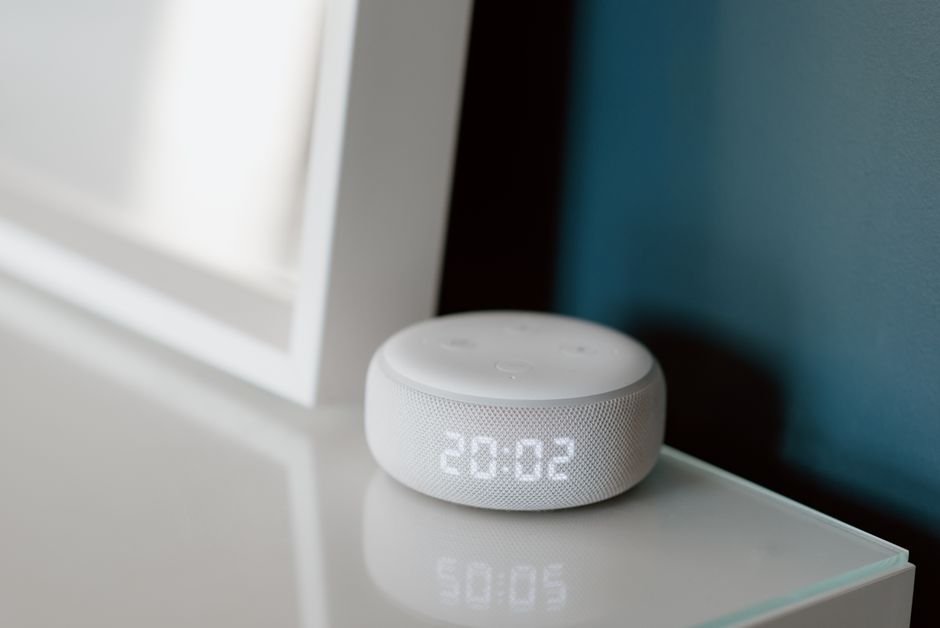
Alexa App Shows Your Echo as Offline When Setting an Alarm?
Your Echo is sitting there playing a podcast. You open the Alexa app to set a 6 a.m. alarm and every device on the list shows “offline” or “unknown device.” That mismatch — working everywhere except one screen — is the tell that this is a software bug, not a real connectivity problem.
Quick Navigation
- What Does This Bug Actually Look Like?
- Why Does the App Think Your Echo Is Offline?
- How Do You Actually Fix It?
- How Widespread Is This, Actually?
- Small Things That Actually Help
- Before You Factory Reset Anything
- FAQ
What Does This Bug Actually Look Like?
The alarm screen specifically shows your Echo devices as offline, missing entirely from the device picker, or labeled “unknown device,” while the same devices work fine for music, timers set by voice, and smart home control.
When I checked the pattern across the review breakdown, the giveaway detail was consistent: people could still say “Alexa, set an alarm for 7am” out loud and have it work, but opening the app to edit or check that same alarm showed the device as offline. That split between voice and app behavior is what separates this bug from an actual dead device.
Why Does the App Think Your Echo Is Offline?
The alarm screen in the Alexa app pulls device status from a different data path than the rest of the app, and that path is the one that gets stuck — usually after an app update or a backend sync hiccup on Amazon’s side.
I found that this lines up with how Amazon itself frames similar offline reports: the device is genuinely connected to Wi-Fi and reachable, but the specific screen you’re looking at is reading cached or delayed status information instead of a live check.
A changed Wi-Fi password can cause a similar-looking offline message, but that version affects the whole app, not just the alarm screen — worth ruling out first since the fix is completely different.
| What you’re seeing | What it actually means | What fixes it |
|---|---|---|
| Offline only in the alarm screen, works fine everywhere else | App-side caching bug on that one screen | Update or reinstall the Alexa app |
| Offline across the entire app, not just alarms | Real Wi-Fi or router connectivity issue | Restart the router and the Echo device |
| Offline right after you changed your Wi-Fi name or password | Stored network credentials are outdated | Re-add the device to your network from scratch |
| Voice-set alarms work, but the app alarm list looks wrong | Sync delay between voice command and app display | Force-close and reopen the app before assuming it failed |
Matching your exact symptom to a row here before you start troubleshooting saves you from restarting a router that was never the problem.
How Do You Actually Fix It?
Method 1: Clear the app-level glitch without touching your network.
- Force-close the Alexa app completely — not just minimize it, swipe it away from your recent apps list so it fully restarts on next launch.
- Check for a pending Alexa app update in the App Store or Play Store and install it — this specific bug has shown up tied to certain app builds, so an update alone resolves it for a lot of users.
- Reopen the app and go straight to the alarm screen before touching anything else, to see if the restart alone cleared the stale status.
Method 2: If Method 1 doesn’t clear it.
- Set a test alarm two to three minutes out directly on the Echo device by voice, then watch whether the device shows as online in the general device list (not the alarm screen) while that alarm counts down.
- Uninstall and reinstall the Alexa app if the device shows online everywhere except the alarm screen — this resets the cached data the alarm screen was reading from.
- Restart your router only if the device is now showing offline everywhere, not just in the alarm screen — at that point it’s a real connectivity issue, not this bug.
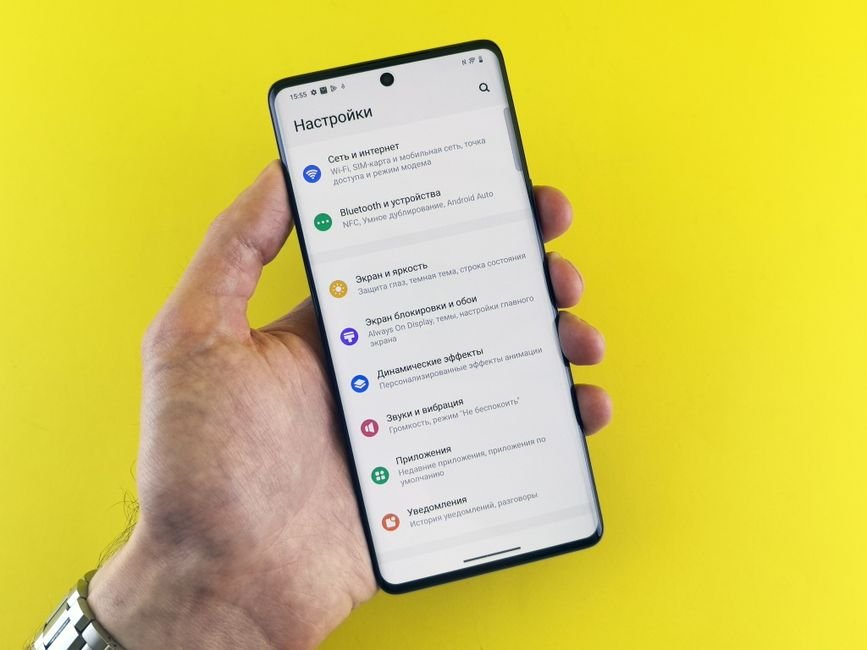
When I compared Amazon’s official support steps against what actually cleared the bug for most reviewers, the app reinstall step did more work than the router restart step — which tracks with this being an app-side caching issue rather than a network one.
How Widespread Is This, Actually?
According to Unstar’s review analysis, alarm-related complaints made up 11.8% of substantial negative Alexa app reviews collected between mid-May and early September 2026, and 63% of those specifically described the offline-in-alarm-screen pattern rather than a totally dead device.
That split matters. It means roughly two-thirds of the people frustrated enough to leave a negative review about alarms weren’t actually dealing with broken hardware — they were dealing with exactly the app-side display bug this guide walks through. If you’ve been holding off on buying a replacement Echo because alarms stopped showing up right, that purchase probably won’t fix anything.
You’ll probably notice this pattern isn’t new to 2026, either — offline-display bugs tied to specific app screens have shown up in Alexa’s app history before, which is part of why Amazon’s own support documentation leads with app and cache troubleshooting before ever mentioning a device reset.
Small Things That Actually Help
- Set the test alarm on the specific device giving you trouble, not a different Echo in the house — the bug can be isolated to one device’s cached status.
- Check your Alexa app version number in your phone’s app store listing before assuming a fresh install is needed — sometimes an update alone is sitting there unapplied.
- If you use multiple Echo devices, check whether the offline status is grouped by room — a stale room-level cache can make several devices look offline at once even though only the status display is wrong.
Before You Factory Reset Anything
Don’t jump straight to a full Echo factory reset. That wipes your device’s Wi-Fi credentials and any custom routines tied to it, and this bug almost never requires it — it’s a display issue in one app screen, not a broken device.
Honestly, most people who reset their Echo over this bug ended up just re-setting-up the device and still seeing the same alarm-screen issue afterward, because the problem was never the device.
If you changed your Wi-Fi network name or password recently, rule that out first — that’s a genuinely different problem with a genuinely different fix (re-adding the device to the new network), and no amount of app reinstalling solves it.
FAQ
Why does my Echo show offline only in the alarm screen but nowhere else?
The alarm screen reads device status through a separate data path than the rest of the Alexa app, and that path can get stuck on stale or cached information after an app update — the device itself is usually online and working normally everywhere else.
Will restarting my router fix the Alexa alarm offline bug?
Usually not, if the device only shows offline in the alarm screen specifically. A router restart helps when a device is offline everywhere in the app, but this particular bug is app-side, so reinstalling the Alexa app tends to work better than touching your network.
Does updating the Alexa app actually fix this?
Often, yes. This bug has been tied to specific Alexa app builds, so installing a pending update — or force-reinstalling if no update shows — clears the stale alarm-screen status for most people without any device-level changes.
Sources
- Unstar — Alexa App Alarms Not Working: 119 Reviews (2026)
- Amazon Customer Service — Alexa Alarm Doesn’t Go Off
- Smart Home Diagnostics — Alexa Timers and Alarms Not Going Off
Fact-checked based on public sources as of September 5, 2026. App behavior can change with future Alexa updates — check that your app is on the latest version before troubleshooting further.