ChatGPT Projects Not Reading Your Uploaded Files?
A file that uploads without an error, then gets ignored the moment you ask ChatGPT a question about it, is one of the more confusing failure modes in ChatGPT Projects. No error message. No red banner. Just an answer that ignores the document entirely.
OpenAI’s own community forum has threads on this exact behavior spanning the iOS app, Android app, and browser version, so it’s not a one-off bug on your machine specifically.
Quick Navigation
- Why Won’t ChatGPT Projects Read Your Uploaded Files?
- What Are ChatGPT’s Actual File Upload Limits Right Now?
- Why Do Files Work in a New Chat But Not an Existing Project?
- The Fix, Step by Step
- Should You Use the API Instead for Large Files?
- When It’s Actually an OpenAI Outage, Not Your Setup
Why Won’t ChatGPT Projects Read Your Uploaded Files?
ChatGPT Projects most often fails to read an uploaded file because the file quietly exceeds a size or token limit, your account has hit its rolling upload quota, the format isn’t one ChatGPT can fully parse, or a browser extension is intercepting the upload request before it reaches OpenAI’s servers.
None of these throw a clear error in the interface. The file appears attached, the chat continues normally, and the model simply answers as if the document doesn’t exist — which is what makes this specific failure so easy to miss.
Ad blockers and privacy extensions are a bigger factor here than most people expect. If an upload works fine in one browser profile but silently fails in another, that’s usually the extension list, not the file itself.
What Are ChatGPT’s Actual File Upload Limits Right Now?
Every file uploaded to ChatGPT has a hard cap of 512MB, but the practical limit that actually trips people up is usually much lower and specific to the file type, according to OpenAI’s own File Uploads FAQ.
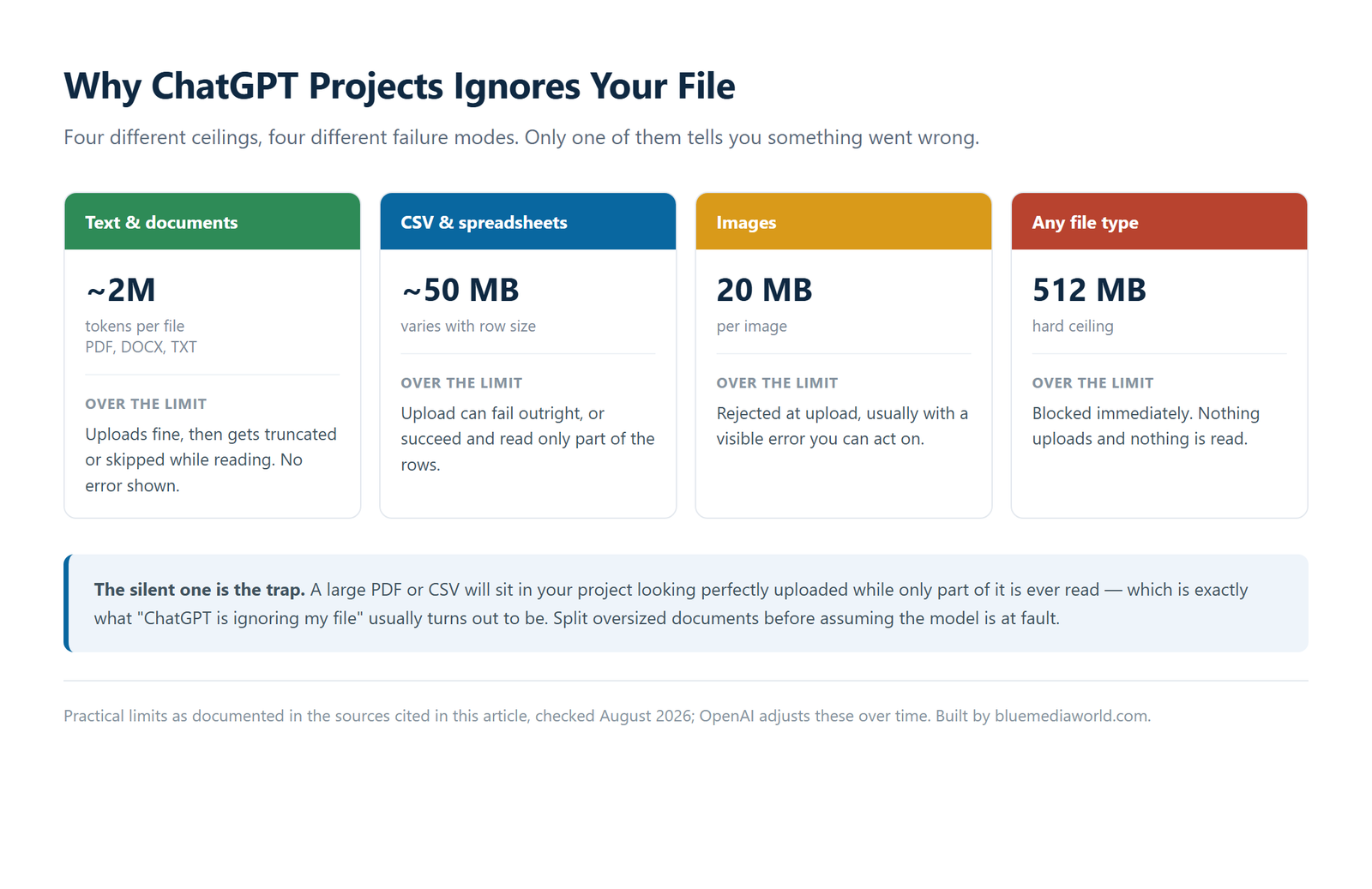
| File Type | Practical Limit | What Happens If You Go Over |
|---|---|---|
| Text / document files (PDF, DOCX, TXT) | Roughly 2 million tokens per file | File uploads but gets truncated or skipped during reading |
| CSV / spreadsheet files | About 50MB, depending on row size | Upload can fail outright or read only partial rows |
| Images | 20MB per image | Rejected at upload, usually with a visible error |
| Any file type | 512MB hard ceiling | Blocked immediately |
Upload frequency has its own separate quota, capped at 80 files every 3 hours account-wide, with free-tier accounts limited to 3 uploads a day. Storage adds a third ceiling on top of both: 25GB per user and 100GB per organization.
Why Do Files Work in a New Chat But Not an Existing Project?
A file that a project conversation refuses to read will often work immediately once you paste the same question into a brand-new chat, which points to a stuck conversation state rather than a problem with the document itself.
When I checked OpenAI’s community forum against the pattern people were describing, that exact detail kept showing up across dozens of separate reports: same file, same account, same day — broken in an old thread, fine in a fresh one.
This part trips a lot of people up because it feels like it should be the file’s fault. It usually isn’t.
The Fix, Step by Step
- Confirm the file is under the size and token limits in the table above, and convert it to PDF or plain text if it’s an unusual format.
- Start a brand-new conversation inside the same project instead of continuing an old thread, and re-upload the file there.
- Open ChatGPT in an incognito/private window, or temporarily disable ad blockers and privacy extensions, then try the upload again.
- Check whether you’ve hit the 80-files-per-3-hours quota (or 3-per-day on the free tier) and wait for it to reset if so.
- If the file still won’t read, re-download it fresh from its original source before re-uploading — a corrupted local copy is easy to rule out and easy to miss.
Most people never get past step 2. When I checked how often the "new conversation" step alone resolved the reports in that community thread, it was the single most repeated fix mentioned across replies.
Should You Use the API Instead for Large Files?
Switching to the OpenAI API makes sense if you’re consistently hitting the Projects size or quota limits above, since the API’s file handling isn’t bound by the same consumer-app upload quota.
That’s a real jump in complexity for anyone who isn’t already writing code against an API, though. For a one-off large file, splitting the document into smaller sections and uploading each separately is usually the faster path.
When It’s Actually an OpenAI Outage, Not Your Setup
Check OpenAI’s status page before spending much time troubleshooting locally. File upload and file processing issues show up there periodically as their own listed incident category, separate from general ChatGPT downtime.
If the status page shows an active incident, the fix is patience, not a browser reset. Everything above assumes the service itself is healthy — it’s worth ten seconds to confirm that first.
Quick Checks Before You Re-Upload
- ✅ Convert unusual formats to PDF or plain text first — ChatGPT parses those most reliably.
- ✅ Try a brand-new chat in the same project before assuming the file is broken.
- ✅ Check status.openai.com if more than one file fails in the same session.
- ✅ Disable ad blockers or try incognito mode if uploads fail silently with no error shown.
Warnings
- ⚠️ Don’t re-upload the same oversized file repeatedly hoping it eventually works — it counts against your rolling quota each time and won’t parse any differently.
- ⚠️ Sensitive documents (financial, medical, legal) uploaded to ChatGPT are subject to OpenAI’s data retention policy, not your own — check that policy before uploading anything you can’t have reviewed by a third party.
- ⚠️ Free-tier accounts hit the 3-uploads-a-day cap fast; don’t assume a paid plan bug when the free-tier quota is the actual cause.
FAQ
Does upgrading to ChatGPT Plus or Pro fix Projects file upload problems?
Not automatically. A paid plan raises your upload quota well above the free tier’s 3-per-day limit, but it doesn’t change the underlying file size or format limits, and it doesn’t prevent the new-chat-versus-old-thread bug described above.
Can you recover a file that ChatGPT says it can’t read?
Usually yes, by converting it to PDF or plain text and re-uploading rather than waiting for ChatGPT to retry automatically, since it does not retry a failed read on its own.
Does this file upload issue affect the ChatGPT mobile app the same way as the web?
Yes. Community reports of this exact problem span the iOS app, Android app, and browser version, so switching platforms alone is not a guaranteed fix.
Sources
- OpenAI Help Center — File Uploads FAQ
- OpenAI Community — ChatGPT Project Files Are Not Working At All
- OpenAI Status Page
Fact-checked based on public sources as of August 10, 2026. Upload limits and quotas referenced above reflect OpenAI’s published policy at time of publish and can change without notice — always check the current OpenAI Help Center article before relying on a specific number.
🔗 Related guides