How to Tell If a Laptop Has Enough RAM for College Before
By Alex Kim · Last updated July 30, 2026 · 3 sources checked
Short answer: 8GB gets you through email and word processing, 16GB is the number that actually prevents the mid-semester slowdown most students hit, and 32GB only matters if your major involves video editing, CAD, or running virtual machines. The rest of this comes down to what you’re majoring in and how many tabs you actually keep open.
8GB is the bare floor and it shows within a semester. 16GB is the realistic sweet spot for browser tabs, Zoom, and office apps running together. Engineering, CS, and video-heavy majors should push to 32GB. Storage matters too — a fast small SSD often beats a slower large one.
How to Fix Chrome Using Too Much Memory on Windows (2026)
Step 1: Check What Your Major Actually Demands
Start here, not with the price tag. Move-in dates for fall 2026 run from roughly mid-August through the last week of August at most U.S. schools, and that’s a narrower window than it feels like right now to get this decision right instead of returning a laptop mid-syllabus week.
Liberal arts, business, and most humanities programs run comfortably on 8–16GB. Nothing you’re running — Word, a browser, Canvas or Blackboard, maybe Spotify in the background — is memory-hungry on its own.
Computer science, engineering, architecture, and film or video production are a different case. Compilers, CAD software, virtual machines, and video editors hold large chunks of memory open for the whole session, and running two of those at once is normal, not an edge case.
When I compared spec sheets across a batch of current back-to-school laptop listings, the RAM figure — not the processor name on the sticker — was the number that consistently separated the $600 machines from the $900 ones. Processors get marketing attention. RAM is what actually runs out first.
Step 2: Count Your Real Multitasking Load
Don’t estimate this. Actually count it.
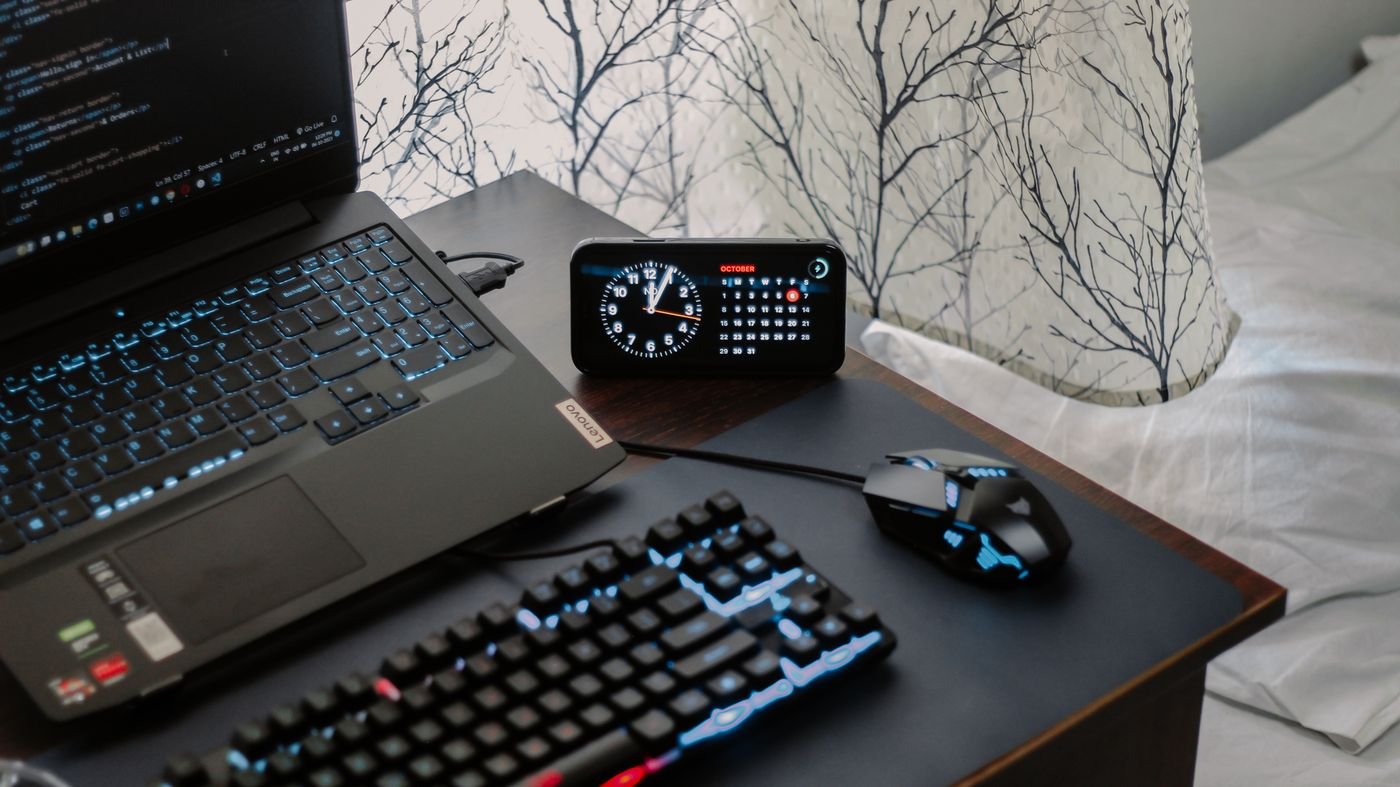
Open your laptop right now the way you’d use it during a study session: a lecture slide deck, 10–15 browser tabs, a video call app, and a document you’re typing in. That’s the baseline load for most students, and it’s heavier than it looks on paper.
When I checked how Windows 11 behaves with that exact load, the operating system itself claims roughly 2–3GB before you’ve opened anything. A browser with 15+ tabs adds another 2–4GB depending on how tab-heavy the sites are. A video call app adds close to 1GB more. Stack that up and an 8GB machine is running near its ceiling before a single assignment is open — that’s when the fan spins up and everything starts lagging.
| RAM | Who it actually fits | Where it breaks down |
|---|---|---|
| 8GB | Light coursework, mostly reading and writing, tight budget | Slows down fast once you add tabs, a call, and background apps together |
| 16GB | Most majors, normal multitasking, the realistic default for 2026 | Can still strain under heavy video editing or several virtual machines at once |
| 32GB | CS, engineering, architecture, film/video, data-heavy coursework | Overkill — and an unnecessary cost — for reading- and writing-based majors |
Step 3: Weigh RAM Against Storage Speed
RAM and storage get confused constantly, and buying enough of one while skimping on the other still leaves you with a laptop that stutters.
RAM is short-term working memory for whatever’s open right now. Storage is where your files, apps, and operating system actually live. A laptop with generous RAM but a slow or nearly-full SSD will still feel sluggish, because the system starts swapping data to disk once RAM fills up — and disk is always slower than memory, sometimes dramatically so.
256GB is workable if you lean on cloud storage for photos and large files. 512GB is the more comfortable number once you factor in software installs, offline media, and the fact that drives feel fuller than the number on the box once the OS and pre-installed apps take their share.
Step 4: Confirm the RAM Isn’t Soldered Below What You Need
Here’s where people get tripped up. Most thin laptops in 2026 — MacBooks included — solder RAM directly to the motherboard. What you buy is what you’re stuck with for the life of the machine.
Before you check out, look for the word “upgradeable” or “soldered” in the spec sheet, not just the RAM number. A handful of budget and business-line Windows laptops still ship with a RAM slot, which means you can start at 8GB and add more later if your course load changes. Soldered machines don’t give you that option, so on those it’s worth paying up front rather than hoping you won’t need it.
Check the storage the same way. Some models let you swap the SSD later; plenty of the thinnest ones don’t.

If you’re still deciding what other software you’ll actually rely on this semester, a practical decision guide on which AI model to use for each task is worth a look too — those tools run in the browser, so they lean on the same RAM budget as everything else you have open.
Two questions decide it: what your coursework demands, and how many things you keep running at once. The answer is often lower than the upsell at the store, and occasionally higher.
Guidance drawn from the fit-and-failure table above. Check whether the model you are considering has soldered memory before you decide, because that turns a future upgrade into a whole new laptop.
Tips
- ✅ If the price difference between 8GB and 16GB is under $100, take the 16GB. It’s the cheapest insurance you’ll buy this year.
- ✅ Close tabs you’re not using instead of just minimizing them — a parked tab still holds memory.
- ✅ Check your specific program’s official requirements page before buying; engineering and design programs often publish a minimum spec sheet.
- ✅ Restart the laptop weekly. Memory leaks from browser extensions build up over days, not hours.
Warnings
⚠️ Return windows on back-to-school laptop deals are usually 14–30 days and vary by retailer — confirm the exact window before move-in, since a slowdown that only shows up once your real course load kicks in can land after the window closes.
⚠️ “Up to 16GB” in a listing sometimes describes the maximum configuration, not the unit you’re about to buy. Confirm the exact RAM figure on the specific model and price you’re checking out with, not the product family name.
References
- Crucial: How Much RAM Do I Need?
- Crucial: How Much Storage Do I Need?
- University of Cincinnati College of Engineering: Minimum Laptop Specifications 2025-26
Q&A
Is 8GB really unusable for college?
Not unusable — workable for light, mostly text-based coursework on a tight budget. It just has the least room for the multitasking most students end up doing anyway once the semester starts.
Does a Chromebook change this math?
Somewhat. ChromeOS is lighter than Windows, so 8GB goes further on a Chromebook, but the moment your program requires desktop-only software, RAM stops being the deciding factor and compatibility takes over.
Should I just buy the maximum RAM available?
Only if your major genuinely uses it. Paying for 32GB to check email and write essays is money that would do more for you spent on a better screen or an extra year of AppleCare or a manufacturer warranty.
Before you check out, pull up the exact model page one more time. Confirm the RAM figure on that specific configuration. Check whether it’s soldered or upgradeable. Then match both against what Step 1 told you about your major. That’s the whole decision.
Frequently Asked Questions
Can I start at 8GB and upgrade the RAM later?
Only on the minority of laptops that still ship with a RAM slot — look for “upgradeable” rather than “soldered” in the spec sheet. Most thin 2026 laptops, MacBooks included, solder RAM to the motherboard, so what you buy is what you keep for the life of the machine.
Does “up to 16GB” in a listing mean the unit I’m buying has 16GB?
Not necessarily. That phrasing often describes the maximum configuration in the product family, not the specific unit at the price you’re checking out. Confirm the exact RAM figure on that model and configuration, not the product family name.
Does a Chromebook change how much RAM I need?
Somewhat. ChromeOS is lighter than Windows, so 8GB stretches further on a Chromebook. But the moment your program requires desktop-only software, RAM stops being the deciding factor and app compatibility takes over.