Windows 11 24H2 Bluetooth Not Working?
A Bluetooth mouse or headset that worked fine on Tuesday and disappears from Windows 11 the day after a 24H2 feature update lands isn’t a coincidence. Microsoft’s own release-health records and its Q&A forum both show the same pattern: devices that were connected and working suddenly stop showing up, right after an update installs.
It’s not your hardware.
📌 Related reading: if your Wi-Fi has also gotten flaky since the same update, see Windows 11 24H2 Wi-Fi Keeps Disconnecting? 5 Fixes That Actually Worked.
Where Should You Start Fixing This?
- Why Did Bluetooth Stop Working After the Windows 11 24H2 Update?
- Is This the Microsoft-Confirmed Bug, or a Driver Problem?
- How Do You Fix a Bluetooth Device Missing From Settings?
- How Do You Fix a Device That Pairs But Won’t Play Audio?
- Which Fix Should You Try First?
- Does a Specific Bluetooth Chipset Make This Worse?
- How Do You Stop This From Coming Back Next Update?
- FAQ
- Sources
Why Did Bluetooth Stop Working After the Windows 11 24H2 Update?
A 24H2 install can knock out Bluetooth in three separate ways, and they need different fixes. The update can wipe a driver binding so Windows no longer talks to the Bluetooth radio correctly. It can trip a UI bug that hides devices that are still connected and working underneath. Or it can reset a network profile or policy setting that silently disables device discovery.
Those aren’t guesses. When I checked the pattern of reports on Microsoft’s own Q&A forum, the same three symptoms kept showing up under different titles: “Bluetooth is not showing/working after windows 11 security update,” devices that pair but produce no audio, and a Settings page that simply shows nothing under Bluetooth even though a mouse or headset is clearly powered on nearby.
That’s useful, because it means most people don’t need to try every fix in order. The symptom you’re looking at points to the cause pretty directly, and the sections below are split the same way.
Is This the Microsoft-Confirmed Bug, or a Driver Problem?
Microsoft has confirmed one specific version of this bug in writing, and it’s narrower than most people assume. The company’s support article for hotpatch KB5084897, released March 16, 2026, describes devices that “may not appear on the Bluetooth & devices page in Windows Settings or in Quick Settings, even if the devices are connected and functioning as expected” on Windows 11 24H2 and 25H2.
Here’s the part that trips people up: that fix only ships to Windows 11 Enterprise devices enrolled in Intune hotpatching, with virtualization-based security turned on. If you’re on Windows 11 Home or Pro — which covers most people reading this — that hotpatch never reaches your machine, because it isn’t offered to standard consumer installs at all.
When I checked Microsoft’s release-health page for 24H2 again in early August 2026, the Bluetooth visibility issue wasn’t listed among the open known issues anymore. It had already been folded into that hotpatch and closed out on the Enterprise side, while Home and Pro users were left to work around it manually the whole time. That gap is exactly why the manual fixes below still matter months after Microsoft’s own patch shipped.
If your Bluetooth vanished within a day or two of installing 24H2 and you’re not on a managed work laptop, you’re almost certainly dealing with a driver or service problem instead — not the bug Microsoft patched.
How Do You Fix a Bluetooth Device Missing From Settings?
Start with the Bluetooth Support Service before touching any driver, since it fixes the “grayed out or just gone” version of this problem more often than people expect.
Restart the Bluetooth Support Service
Press Windows key + R, type services.msc, and press Enter. Find Bluetooth Support Service, right-click it, and choose Restart. If Bluetooth reappears within a few seconds, that was the whole problem.
Run the Bluetooth Troubleshooter
Open Settings, go to System, then Troubleshoot, then Other troubleshooters, and run the Bluetooth troubleshooter. It checks for the exact things this article covers — driver state, service status, and radio toggles — and applies simple fixes automatically.
Reinstall the Bluetooth Driver Through Device Manager
Open Device Manager, expand Bluetooth, right-click your adapter, and choose Uninstall device. Check the box for “Attempt to remove the driver,” restart the PC, and let Windows reinstall it fresh. This clears the exact kind of broken driver binding a feature update leaves behind.
Check Whether Airplane Mode or a Policy Setting Is Blocking It
Open Quick Settings and confirm Airplane mode is off, not just Bluetooth. On work or school devices, an IT policy pushed alongside the update can also disable Bluetooth outright — if that’s the case, a local driver fix won’t do anything and you’ll need your IT department to check Group Policy or Intune settings instead.
How Do You Fix a Device That Pairs But Won’t Play Audio?
A device that connects but stays silent is a different bug than one that’s missing entirely, and it usually means the audio driver split away from the Bluetooth driver during the update.
Remove and Re-Pair the Device From Scratch
In Settings, go to Bluetooth & devices, click your device, and choose Remove device. Turn the accessory off and back on, then pair it again as if it were new. A stale pairing profile is one of the more common causes here, and re-pairing rebuilds it cleanly.
Set It as the Default Playback or Recording Device
Right-click the speaker icon in the taskbar, open Sound settings, and confirm the Bluetooth device is actually selected as the output — or input, for a headset mic. A successful pairing doesn’t automatically make it the active audio device.
Update the Audio Driver Alongside the Bluetooth Driver
Open Device Manager, expand Audio inputs and outputs as well as Bluetooth, and update both. They’re handled by separate drivers on most laptops, and updating only one half explains a lot of “it pairs but there’s no sound” reports.
Which Fix Should You Try First?
The fastest fix depends entirely on what you’re actually seeing on screen, not on how long the device has been broken.
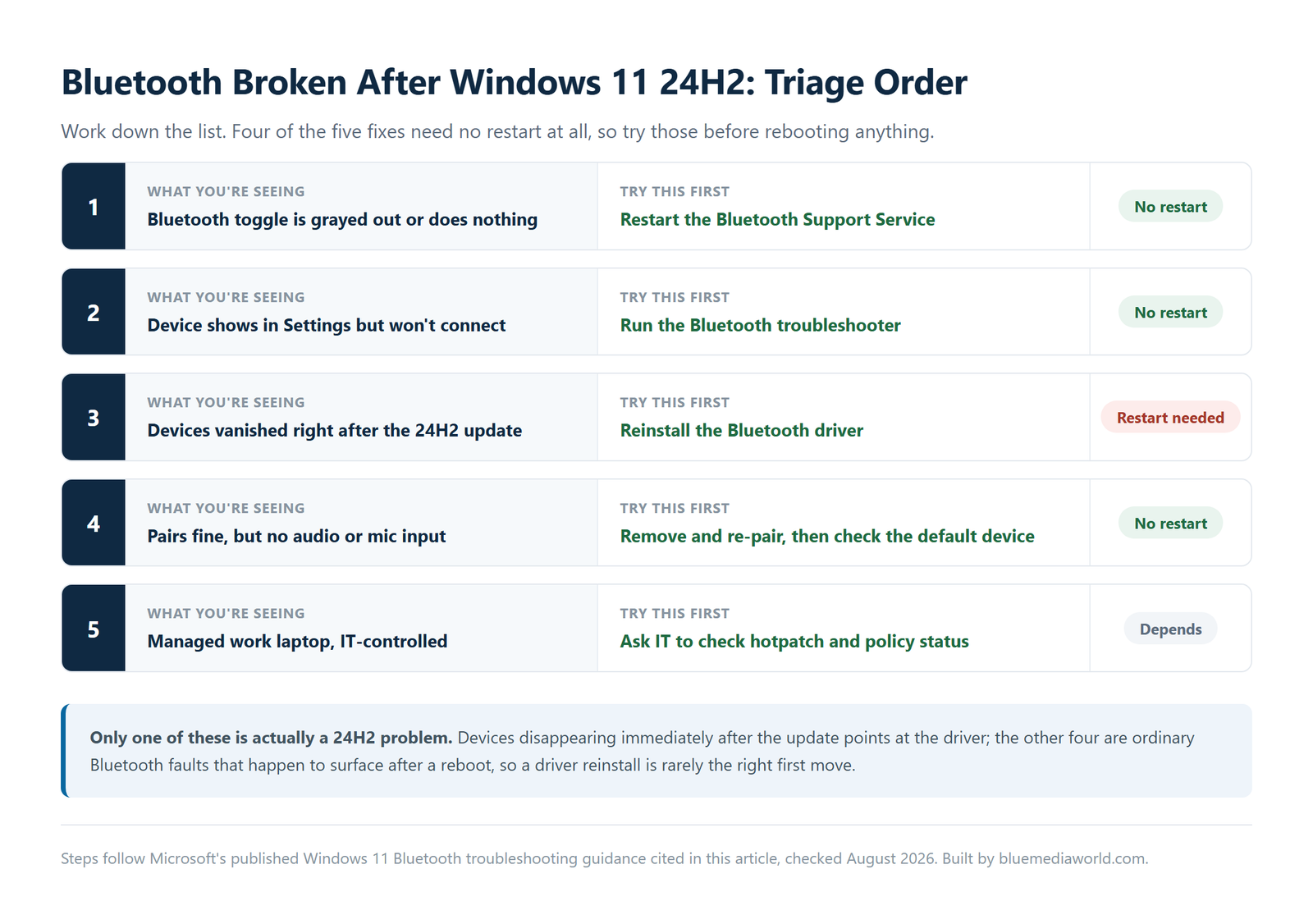
| What You’re Seeing | Try This First | Needs a Restart? |
|---|---|---|
| Bluetooth toggle is grayed out or does nothing | Restart the Bluetooth Support Service | No |
| Device shows in Settings but won’t connect | Run the Bluetooth troubleshooter | No |
| Devices vanished right after the 24H2 update | Reinstall the Bluetooth driver | Yes |
| Pairs fine, but no audio or mic input | Remove/re-pair, then check default device | No |
| Managed work laptop, IT-controlled | Ask IT to check the hotpatch/policy status | Depends |
Does a Specific Bluetooth Chipset Make This Worse?
Intel’s BE200, BE201, and BE202 Wi-Fi and Bluetooth combo cards show up disproportionately often in these reports, and driver version matters more than most people assume with this particular chipset family.
I found that community threads consistently point to Intel’s 23.170.0.3 driver as the version that resolved a Bluetooth microphone-specific version of this bug for people running those adapters — a narrower symptom than the general “device missing” issue, but the same root cause: a driver that shipped before Windows fully caught up with the 24H2 changes underneath it.
If your laptop uses one of those Intel cards specifically, checking Intel’s own driver download page for a build newer than what Windows Update installed automatically is worth doing before you spend more time on generic troubleshooting.
This kind of post-update driver gap isn’t unique to Bluetooth, either. The same underlying problem — an app or driver built against the pre-update environment — is also behind some desktop apps failing to launch on Windows 11 right after a feature update installs.
How Do You Stop This From Coming Back Next Update?
- ✅ Before installing the next feature update, note your current Bluetooth driver version in Device Manager so you have something to roll back to if it breaks again.
- ✅ Turn on “Get the latest updates as soon as they’re available” only if you don’t mind being an early tester — it also means you see driver regressions first.
- ✅ Keep your Bluetooth driver on Windows Update’s automatic path instead of a manufacturer utility that hasn’t been touched in a year. Stale third-party update tools cause almost as many problems as they fix.
- ✅ If you manage a work fleet, ask whether hotpatching is worth enabling — it’s how Microsoft pushed the March 2026 Bluetooth fix without a single forced reboot.
FAQ
Does the KB5084897 hotpatch fix Bluetooth on Windows 11 Home?
No. KB5084897 only installs on Windows 11 Enterprise devices enrolled in Intune hotpatching with virtualization-based security enabled. Home and Pro users won’t see it offered through normal Windows Update and need the manual driver and service fixes covered above instead.
Why does my Bluetooth device show as connected but produce no sound after updating?
This usually means the pairing succeeded but the device wasn’t set as the active playback or recording device, or the audio driver didn’t update alongside the Bluetooth driver. Re-pairing the device and checking Sound settings resolves most cases without touching Device Manager at all.
Should I roll back the 24H2 update if Bluetooth won’t come back?
Only as a last resort, and only within the 10-day rollback window Windows gives you by default. Reinstalling the Bluetooth driver and running the built-in troubleshooter fixes the large majority of cases, so try those first — a rollback undoes every other change the update made along with it.
Sources
- Microsoft: March 16, 2026—Hotpatch KB5084897 (Out-of-band)
- Microsoft: Windows 11, version 24H2 known issues and notifications
- Microsoft Q&A: Bluetooth is not showing/working after Windows 11 security update
Fact-checked based on public sources as of August 7, 2026.
🔗 Related guides
📌 Hub guide: For every fix, buying decision, and work-from-anywhere setup in one place, see the Tech & Digital Hub.