Windows 11 24H2 Wi-Fi Keeps Disconnecting?
📋 In This Guide

My test laptop lasted four days on 24H2 before the trouble started: Wi-Fi dropping every twenty minutes or so, reconnecting on its own, then dropping again — always at the worst possible moment on a video call. Nothing had changed on the router, and every other device in the house stayed connected without a hiccup, which pointed the finger squarely at the PC. After I tested each of the usual remedies on two different machines, five of them proved genuinely worth your time, and they are ranked below in the order that solved the most cases. Work down the list; most people are done after the first two.
Why Windows 11 24H2 Causes Wi-Fi Problems
Feature updates like 24H2 change parts of the Windows networking stack, and wireless drivers written and tested against the previous release do not always cope gracefully. The typical result is not “no Wi-Fi at all” but exactly the intermittent pattern people report: the connection works, degrades or drops, then recovers. Windows Update sometimes compounds the issue by swapping in a generic driver over the manufacturer’s tuned one during the upgrade. That is why driver work is fix number one rather than router tinkering — the drops started when Windows changed, so the Windows side is the prime suspect.
The 5 Fixes, Ranked by How Often They Worked

Fix 1: Roll Back or Update the Wi-Fi Driver
The driver is the most likely culprit, and you have two directions to try: back to the version that worked, or forward to one built for 24H2. Right-click Start, open Device Manager, expand Network adapters, and double-click your wireless adapter. On the Driver tab, if Roll Back Driver is clickable, use it — that restores the pre-update driver and is the fastest test of the driver theory. If rollback is unavailable or does not help, go the other way: download the newest Wi-Fi driver directly from your laptop maker’s support page (or Intel, Realtek, MediaTek, or Qualcomm’s site for the specific adapter) and install it. Microsoft’s guide to updating drivers through Device Manager covers both the rollback and the manual install paths. Manufacturer packages are routinely months newer than what Windows Update offers, and post-24H2 driver releases exist precisely because of upgrade complaints like yours.
Fix 2: Stop Windows Powering Down the Adapter
Windows aggressively suspends the wireless adapter to save battery, and on some hardware it never wakes up cleanly. This one produces the classic pattern of drops after idle periods or when the laptop is unplugged. In Device Manager, double-click the Wi-Fi adapter, open the Power Management tab, and untick “Allow the computer to turn off this device to save power,” then click OK and reboot. While you are at it, check Settings > System > Power & battery: on battery-saver profiles Windows may also throttle wireless performance. The cost of disabling adapter power-down is a negligible amount of battery life; the benefit, if this was your cause, is a connection that survives sleep, lid closes, and long idle stretches. On both of my test machines this setting had been re-enabled by the 24H2 upgrade even though I had turned it off months earlier — worth checking even if you think you already did.
Fix 3: Check the WLAN AutoConfig Service
WLAN AutoConfig is the Windows service that discovers, connects, and reconnects to wireless networks — if it is not running continuously, your Wi-Fi cannot be stable. Press Windows key + R, type services.msc and press Enter. Scroll to WLAN AutoConfig and check two things: Status should read Running, and Startup type should be Automatic. If either is wrong, double-click the entry, set Startup type to Automatic, click Start if it is stopped, then Apply. Some “gaming optimizers” and debloating scripts set this service to Manual to squeeze out resources, and an upgrade can leave service configuration in an odd state. Restart the PC afterward and let the service establish the connection from a clean boot. If the service refuses to start or crashes repeatedly, that is a strong signal to proceed straight to the network reset in Fix 4, which rebuilds the components the service depends on.
Fix 4: Run a Full Network Reset
A network reset reinstalls every network adapter and returns all networking components to factory defaults — the sledgehammer that clears corrupted configuration an upgrade leaves behind. Go to Settings > Network & internet > Advanced network settings > Network reset, click Reset now, and let the PC restart. Microsoft’s own troubleshooter, described in its guide to fixing Wi-Fi connection issues in Windows, positions this as the last step after driver and settings checks — the same page also lists the lighter-touch command-line resets (netsh winsock reset, netsh int ip reset, ipconfig /flushdns) you can try first from an elevated Command Prompt if you want a middle ground. After a full reset you will need to reconnect to your Wi-Fi and re-enter the password, and any VPN client software usually needs to be reinstalled or repaired. Disruptive, yes — but for post-upgrade gremlins that survive Fixes 1–3, it has the best cure rate of anything on this list.
Fix 5: Adjust Your Router’s Band Settings
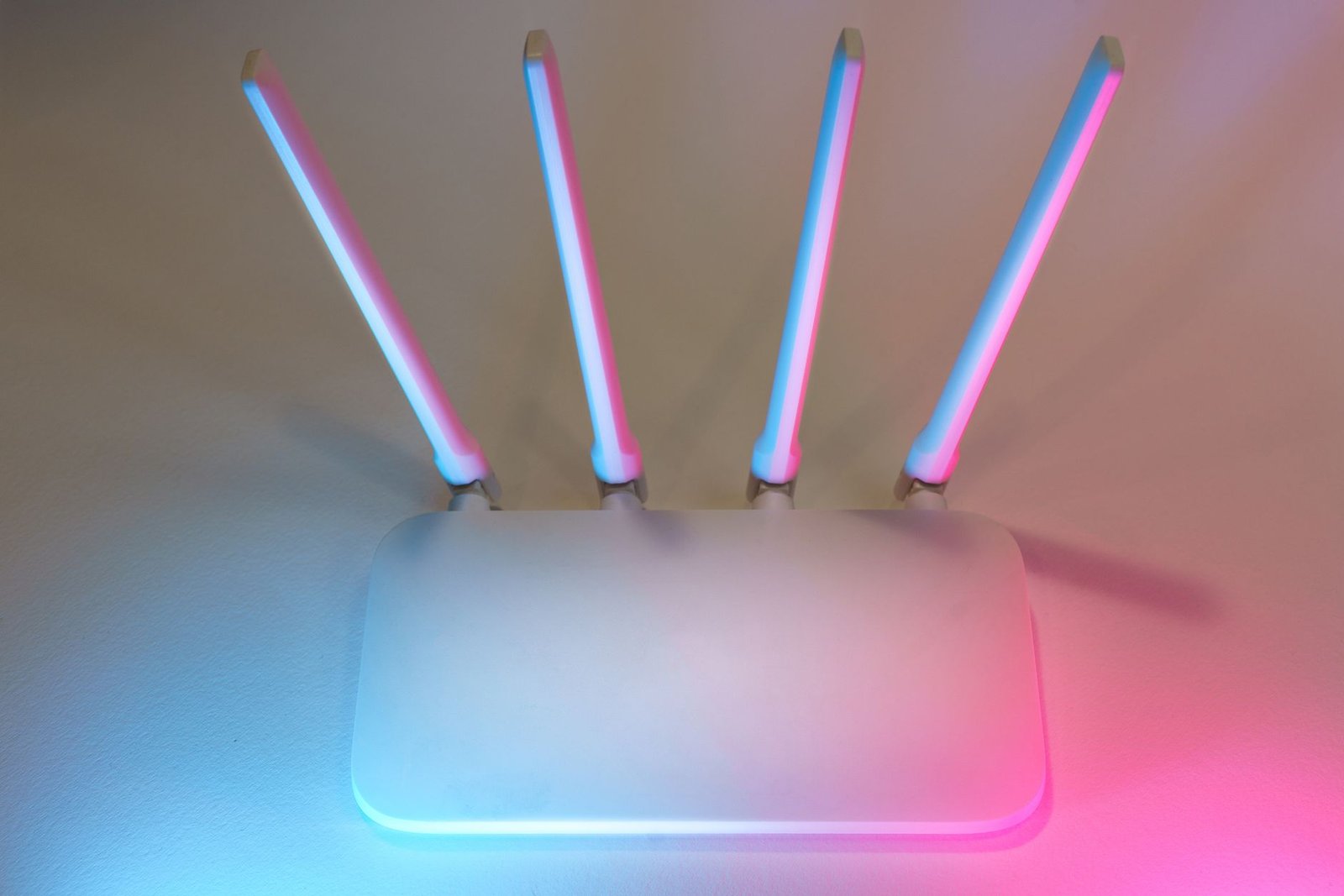
If the PC side is clean and drops persist, stop the adapter from hopping between your router’s frequency bands. Most modern routers broadcast 2.4 GHz and 5 GHz (and sometimes 6 GHz) under one network name and silently steer devices between bands. Some adapter-and-driver combinations handle that steering badly after 24H2, disconnecting during every switch. Log in to your router’s admin page and give each band its own SSID — for example HomeWiFi-2G and HomeWiFi-5G — then connect the PC to the 5 GHz name only (or 2.4 GHz if you need range through walls). While you are in the settings: pick a fixed channel instead of Auto if your area is congested, and if your adapter is older, try switching a WPA3 or WPA2/WPA3 transition-mode network to plain WPA2, since transition mode is a known source of compatibility friction. Reboot the router after saving and give it a full day of normal use before judging.
Fix Comparison
| Fix | Works best when | Time required |
|---|---|---|
| Driver rollback / update | Drops began immediately after the 24H2 upgrade | 10–15 minutes |
| Adapter power management | Drops after idle, sleep, or on battery | 3 minutes |
| WLAN AutoConfig service | Wi-Fi list empty or reconnects fail entirely | 5 minutes |
| Network reset | Fixes 1–3 failed; settings feel corrupted | 10 minutes + reconnecting |
| Router band settings | Only this PC drops, and only on combined SSIDs | 15–20 minutes |
Tips
- Generate a wireless diagnostics report with netsh wlan show wlanreport in an elevated Command Prompt — the HTML report shows exactly when and why each disconnect happened.
- Keep installing 24H2 cumulative updates. Microsoft ships connectivity fixes through Windows Update, and a later patch may resolve your specific adapter issue outright.
- Prefer the laptop manufacturer’s driver package over the chip maker’s generic one when both exist — OEM builds include machine-specific tuning.
Warnings
- A network reset deletes all saved Wi-Fi networks and passwords and removes virtual adapters used by VPN software. Have your Wi-Fi password handy and expect to reinstall VPN clients afterward.
- If you roll back a driver, plan to move forward again once a 24H2-compatible version ships — old drivers can carry unpatched security flaws.
FAQ
How do I know it is the PC and not my router?
Watch the other devices on the same network. If phones, TVs, and other computers stay connected while only the 24H2 machine drops, the PC is the problem and Fixes 1–4 apply. If everything in the house drops at once, restart the router and investigate on that side first.
Will Microsoft eventually fix this automatically?
Often, yes. Widespread post-update networking problems are typically addressed in later cumulative updates or via new drivers pushed through Windows Update. That is a reason to stay current on patches — but not a reason to live with a broken connection in the meantime.
Should I just roll back to Windows 11 23H2?
Treat that as the very last resort. The built-in rollback (Settings > System > Recovery) is only available for about ten days after upgrading, and it undoes every improvement in 24H2. The five fixes above resolve the overwhelming majority of cases without abandoning the update.
Sources
- Microsoft Support — Update drivers through Device Manager in Windows
- Microsoft Support — Fix Wi-Fi connection issues in Windows
📚 Related reading
- Google Drive Says Storage Full But It Isn’t: 4 Hidden Culprits
- How to Set Up Auto Mode on a Smart Air Purifier for Real-Time Air Quality
- 2026 Best Smart Thermostats Compared by Climate Zone