How to Cancel a QuickBooks Self-Employed Subscription
QuickBooks Self-Employed cancels itself out of your bank feed and mileage tracker in under two minutes once you find the right screen. Getting your money back for a charge you didn’t mean to pay is a different problem, and it’s the one most freelancers actually came here for.
A refund request for a $20 monthly QuickBooks Self-Employed charge and a refund request for a $200 annual renewal are not the same conversation with Intuit support, and treating them the same is where most people lose the argument before they even start it.
Skip to What You Need
- How Do You Cancel a QuickBooks Self-Employed Subscription?
- Will Intuit Actually Refund You After You Cancel?
- QuickBooks Self-Employed vs. Wave vs. FreshBooks: What Happens When You Cancel
- What Happens to Your Transactions and Tax Bundle After You Cancel?
- The Two Mistakes That Cost Freelancers the Most Money
- Should You Downgrade Instead of Fully Canceling?
How Do You Cancel a QuickBooks Self-Employed Subscription?
You cancel QuickBooks Self-Employed by signing in through a web browser, not the mobile app, and going to Billing Info under the Gear icon.
- Sign in to QuickBooks Self-Employed at qbse.intuit.com using a desktop or mobile browser (the app itself has no cancel option).
- Click the Gear icon in the top right corner.
- Select Billing Info from the menu.
- Click Cancel Subscription and confirm when prompted.
- Watch for a cancellation confirmation email and save it as proof of the date you canceled.
Skipping that confirmation email is a small thing. It’s also the easiest way to lose a billing dispute three weeks later when you can’t prove when you actually clicked cancel.
Will Intuit Actually Refund You After You Cancel?
Intuit does not automatically refund a QuickBooks Self-Employed charge just because you cancel the same day. Refund eligibility depends almost entirely on your billing cycle and how fast you act after the charge posts.
When I checked how Intuit’s refund language compares to the way most SaaS billing teams handle renewals, the pattern held up: monthly subscribers almost never get the current month’s charge back once it’s posted, while annual subscribers get a real window, usually the first 60 days, where a prorated refund is possible if you contact support directly instead of relying on the self-service cancel button alone.
Cancel first, then ask for the refund separately. The cancellation stops future charges immediately, but the refund is a conversation you start yourself through Intuit’s support chat or phone line, and it rarely happens on its own.
If Intuit won’t budge on a refund and the charge still feels wrong, a chargeback works differently than going back through a direct refund request, and knowing which one to try first can save you weeks of back and forth.
QuickBooks Self-Employed vs. Wave vs. FreshBooks: What Happens When You Cancel
The three tools freelancers compare most often handle cancellation and refunds in noticeably different ways, and the gap matters more than the monthly price tag suggests.
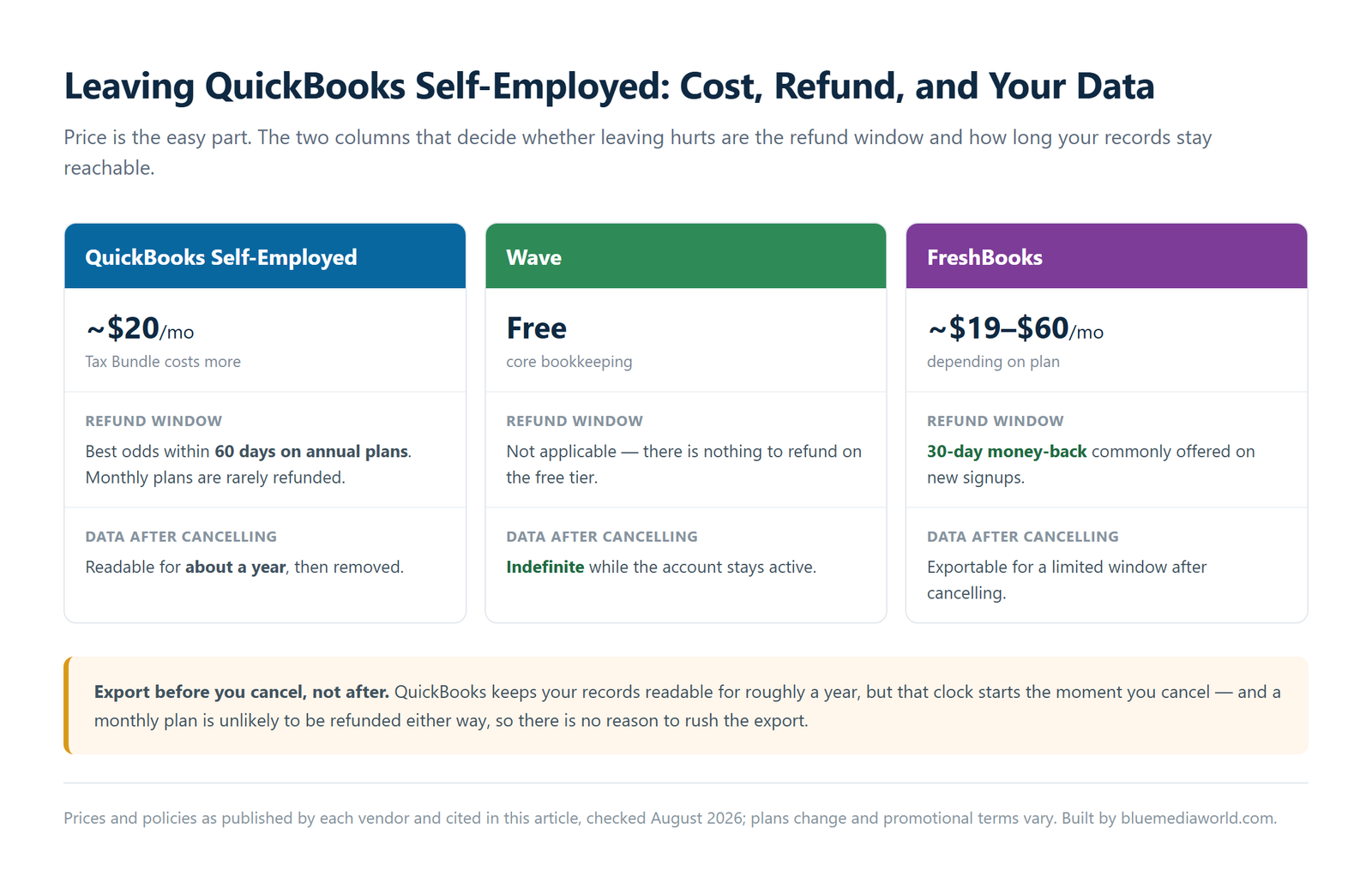
| Software | Monthly Price (2026) | Refund Window | Data Access After Cancel |
|---|---|---|---|
| QuickBooks Self-Employed | About $20/mo (Tax Bundle higher) | Best odds within 60 days on annual plans; monthly rarely refunded | About 1 year, then removed |
| Wave | Free (core bookkeeping) | Not applicable, nothing to refund on the free tier | Indefinite while account stays active |
| FreshBooks | About $19-$60/mo depending on plan | 30-day money-back window commonly offered on new signups | Exportable for a limited window post-cancel |
When I checked Wave’s pricing page against FreshBooks’ plan tiers side by side, the gap that mattered wasn’t the sticker price. It was that Wave has almost no cancellation friction because there’s nothing recurring to bill in the first place, while FreshBooks and QuickBooks both require you to actively manage a billing cycle to avoid an unwanted renewal.

What Happens to Your Transactions and Tax Bundle After You Cancel?
Your QuickBooks Self-Employed transaction history, mileage log, and receipts stay in Intuit’s system for roughly a year after you cancel, but you lose the ability to view or export any of it once your access actually lapses.
If you signed up through the TurboTax Tax Bundle, canceling QuickBooks Self-Employed usually cancels the linked TurboTax Self-Employed filing access too. That’s fine after tax season is over. Mid-season, it can lock you out of a return you haven’t finished filing yet.
Your quarterly estimated tax payment history, the numbers you’ll need for reporting side hustle income under the current tax rules, lives inside that same data set. Export it before you cancel, not after.
The Two Mistakes That Cost Freelancers the Most Money
The first mistake is canceling mid-tax-season without exporting the Schedule C summary first. QuickBooks builds that summary from a full year of categorized transactions, and rebuilding it manually from bank statements later takes actual hours, not minutes.
The second mistake is assuming cancel and downgrade are the same button. They’re not. Someone who only wants to drop the $5-10/month Tax Bundle add-on but keep basic bookkeeping active often hits full cancel instead, losing transaction history and mileage data to save a few dollars a month.
Honestly, that second one is avoidable with a five-second look at the billing menu before clicking anything.
Should You Downgrade Instead of Fully Canceling?
Downgrading makes more sense than a full cancellation when your actual goal is dropping an add-on, like the Tax Bundle, rather than stopping bookkeeping entirely.
Before you hit cancel, run through this:
- ✅ Export your transactions, mileage log, and Schedule C summary as CSV or PDF.
- ✅ Screenshot or save your current billing cycle end date.
- ✅ Check whether you’re on the Tax Bundle, and if so, confirm what happens to linked TurboTax access.
- ✅ Decide whether you want to stop paying entirely or just drop an add-on and downgrade.
- ✅ Save the cancellation confirmation email as proof of the date.
If you’re not sure yet, downgrade first. You can always cancel fully next month once you’ve confirmed you don’t need the data anymore.
Fast Checks Before You Cancel
- ✅ Cancel from a browser, not the app. The option doesn’t exist in the mobile app menu.
- ✅ Export everything you might need before your final billing date, not after.
- ✅ On an annual plan, contact support within the first few days of a renewal charge for the best refund odds.
- ✅ Save the confirmation email the moment you cancel.
Warnings
- ⚠️ This is general information based on publicly available billing policies, not tax or financial advice. Confirm current terms directly with Intuit before you act, since SaaS refund policies change without much notice.
- ⚠️ Canceling mid-tax-season on the Tax Bundle plan can cut off TurboTax filing access before your return is done. Check this first if you haven’t filed yet.
- ⚠️ Data is not retrievable once your roughly 1-year access window closes. Export before you cancel, not when you remember you need something.
FAQ
Can you get a refund if QuickBooks Self-Employed already auto-renewed your annual plan?
Sometimes. Contacting Intuit support within a few days of an annual renewal charge gives you the best chance at a prorated refund. Waiting weeks after the charge posts makes a refund unlikely.
Does canceling QuickBooks Self-Employed cancel a linked TurboTax bundle automatically?
Usually, if you signed up through the combined Tax Bundle plan, canceling from the QuickBooks billing screen cancels both. If you added TurboTax separately, you may need to cancel that subscription on your TurboTax account page too.
What happens to your saved receipts and mileage tracking data after you cancel?
Your data is not deleted right away. Intuit generally retains it for about a year after cancellation, but it becomes inaccessible once your access actually lapses, so export what you need before your final billing date.
Sources
Fact-checked based on public sources as of August 10, 2026. Prices and refund windows referenced above reflect publicly listed policies at time of publish and can change, so always confirm current terms directly with the provider before you cancel. This article is for general information only and is not tax or financial advice.
🔗 Related guides