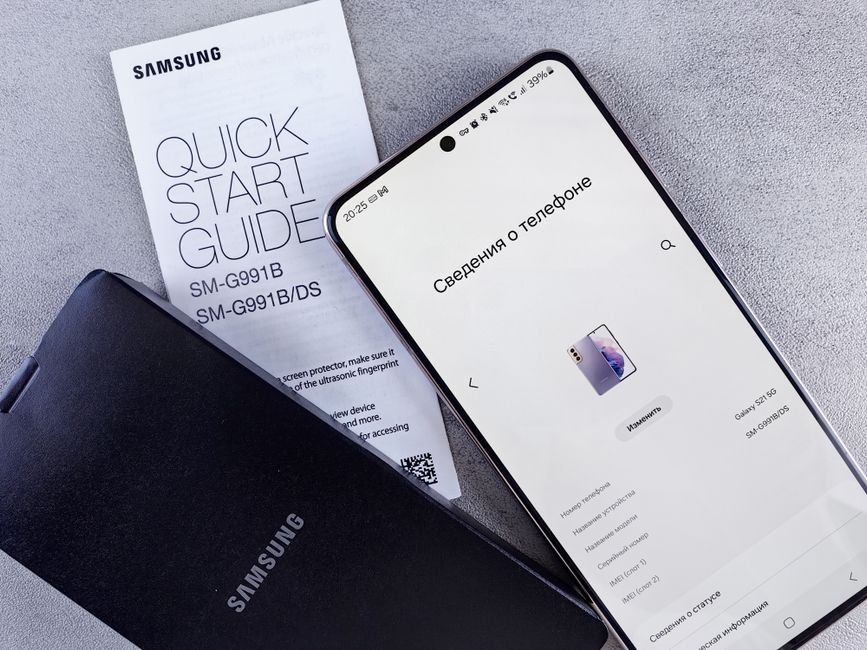
Galaxy Stuck on an XML “Access Denied” Screen After the One UI 9 Update? The Safe Mode and Airplane Mode Fix (2026)
Short answer: Some Galaxy phones get stuck on an XML “Access Denied” screen right after installing One UI 9. Your data is almost certainly still there. Force-restart into Safe Mode. Turn on Airplane Mode. Restart normally while offline. That clears it for most people. Haven’t updated yet? Switch on Airplane Mode before you tap Install, and don’t factory reset to get past this screen.
You install a big update, the phone reboots, and instead of the “what’s new” screen you get an error you can’t swipe away.
That’s what a growing number of Galaxy owners hit on October 11 and 12, 2026, as Samsung pushed the Android 17-based One UI 9 update to more phones outside Korea. Reports cover the Galaxy S26, S25, and S24 series, some foldables, and the mid-range Galaxy A57.
The good news is that this isn’t a corrupted install. Below is the fix that’s working, the version to use if you can’t reach Settings, and how to update without hitting it at all.
Contents
- What is the XML “Access Denied” error after the One UI 9 update?
- Which Galaxy phones are affected?
- How do you get past the error without losing your data?
- Can’t reach Settings at all? The offline workaround
- How do you install One UI 9 without hitting the error?
- Why hasn’t One UI 9 shown up on your phone yet?
- Tips
- Warnings
- FAQ
- Sources
What is the XML “Access Denied” error after the One UI 9 update?
The XML “Access Denied” error is a full-screen message that some Samsung Galaxy phones show after the One UI 9 update finishes installing and the phone restarts, which stops the setup screens from completing and blocks the home screen, as Android Headlines reported on October 12, 2026.
Restarting doesn’t help. The phone comes back to the same screen.
Normally a Galaxy phone shows a short summary of new features after a major update. Here, the phone seems to stall while checking something with Samsung’s servers and never finishes. You can’t open apps or get into Settings from that screen.
What causes it? Samsung hasn’t said. Android Headlines, citing a tipster on X via SamMobile, says the likely trigger is a server-side change Samsung made to block leaked firmware, which broke a verification step after the update. That’s unconfirmed. But it lines up with why the fix works: cut the phone off from the network and the broken check never runs.
| What you see | What it probably means | What to do |
|---|---|---|
| XML / “Access Denied” message right after the update reboot | Post-update check failing online, not a bad install | Safe Mode, then Airplane Mode, then a normal restart |
| Same screen after every restart | Phone is still online, so the check runs again | Get the phone offline before restarting |
| Phone won’t get past the Samsung logo at all | A different boot problem | Contact Samsung support before trying a reset |
| Home screen loads, but charging feels slower | Separate One UI 9 reports, not this bug | Test with the original charger before assuming the update caused it |
Symptom guide built from Android Headlines, SamMobile, and SammyFans reports, October 12, 2026. Samsung has not published an official cause.
Which Galaxy phones are affected?
The One UI 9 XML error has been reported on the Galaxy S26, S25, and S24 series, some Galaxy foldables, and the Galaxy A57, according to SammyFans’ October 12, 2026 roundup of Reddit reports.
The A57 got the loudest warning. SamMobile told A57 owners to hold off on One UI 9.0 after reports, via GalaxyClub and Reddit, that the update stopped some phones from booting. It came less than a day after the A57’s rollout started outside Korea.
Not every phone gets it. Plenty of people updated with no trouble. When I checked the reports side by side, I noticed that every fix that worked had one thing in common. The phone was taken offline before the restart. That points at the network check, not at your phone’s storage.
How do you get past the error without losing your data?
Galaxy owners stuck on the One UI 9 XML error can usually clear it without a factory reset by booting into Safe Mode, turning on Airplane Mode, and then restarting normally, a workaround reported by Android Headlines and SammyFans on October 12, 2026.
Samsung hasn’t officially confirmed this method. It’s what’s working for users right now.
Method 1: Safe Mode plus Airplane Mode
- Force a restart. Press and hold Volume Down and the Power (side) key together until the screen goes black.
- Hold Volume Down at the logo. As soon as the Samsung logo appears, press and hold Volume Down. Keep holding until the phone finishes starting. You should see “Safe mode” in the bottom-left corner. Samsung’s Safe mode guide describes this same button method.
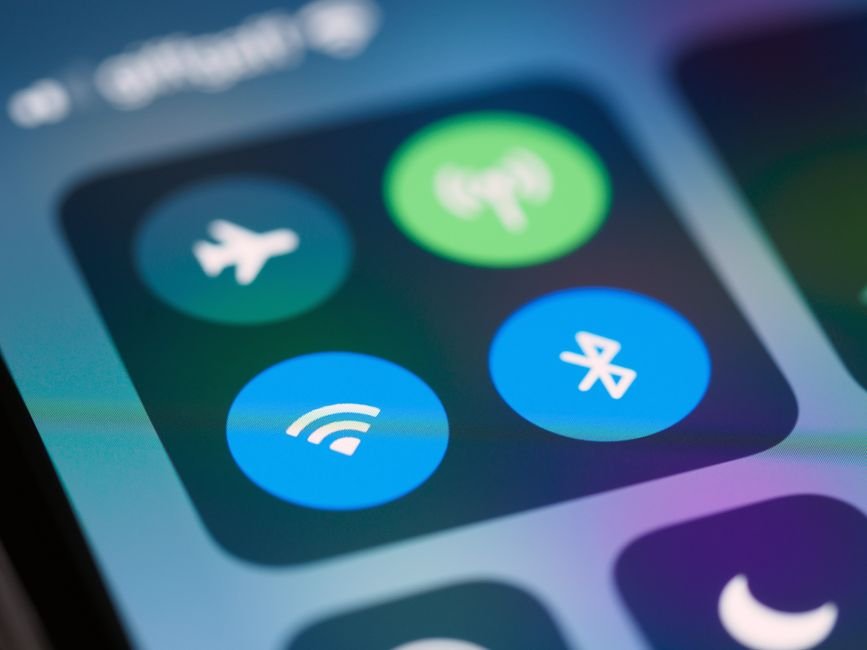
- Turn on Airplane Mode. Swipe down from the top of the screen and tap Airplane mode. Check that Wi-Fi is off too, since some phones keep Wi-Fi on in Airplane mode.
- Restart normally. Use the power menu and tap Restart. Don’t reconnect yet.
- Reach the home screen, then reconnect. Once you’re on the home screen, turn Airplane Mode off.
Most people only need to do this once, according to SamMobile’s reporting. If the error comes back after you reconnect, repeat the steps and stay offline a little longer. Then check Settings for a follow-up update.
One small catch. Samsung’s own page warns that leaving Safe mode can reset some customizations, like wallpapers and themes, to defaults. Annoying, but your photos, messages, and apps stay put.
Can’t reach Settings at all? The offline workaround
If a Galaxy phone stuck on the One UI 9 error won’t let you open Quick Settings even in Safe Mode, you can take the network away from outside the phone instead.
Method 2: Cut the network at the source
- Unplug your Wi-Fi router, or walk somewhere the phone has never joined a Wi-Fi network.
- Pop out the SIM tray with the eject tool to drop mobile data. On eSIM-only phones, skip this and rely on being out of Wi-Fi range plus Safe Mode.
- Force restart with Volume Down and Power.
- Wait for the home screen, then put the SIM back and plug the router back in.
SammyFans reports users getting through this way when they couldn’t reach any toggles. It’s clumsy. It also skips the reset that wipes everything.
Honestly, that’s usually enough.
How do you install One UI 9 without hitting the error?
Galaxy owners who haven’t installed One UI 9 yet can avoid the XML error by downloading the update, turning on Airplane Mode right before tapping Install, and reconnecting only after the phone reaches the home screen, according to Android Headlines’ October 12, 2026 guidance.
Here’s the order that avoids the problem:
- Back up first. Use Samsung Cloud, Google One, or Smart Switch to a PC. A major Android version jump is the wrong time to skip this.
- Free up space. Notebookcheck put the full One UI 9 download at about 3.8GB on the Galaxy S24 series for people coming from One UI 8.5. Leave a few gigabytes more than that free for the install.
- Charge to at least half. An install that dies halfway is a much bigger problem than this one.
- Download on Wi-Fi. Settings, then Software update, then Download and install. Let the download finish.
- Switch on Airplane Mode, and confirm Wi-Fi is off.
- Tap Install. Wait through the reboot and the setup screens.
- Reconnect only once you’re on the home screen.
A Galaxy A57 owner has a simpler choice. Wait a few days. SamMobile’s advice was to hold back until Samsung shares details or ships a fix, and no security deadline forces anyone to update this week.
Why hasn’t One UI 9 shown up on your phone yet?
One UI 9 is rolling out in stages, so a Galaxy S24 that doesn’t see the update yet is usually just waiting its turn. Samsung started the S24 series in South Korea on October 6, 2026, and moved on to beta participants in India on October 12, according to SammyFans.
Some U.S. phones are already getting it. 9to5Google reported on October 12 that the S24 update appears to be available in South Korea and the U.S., with more regions expected within days. SammyFans reported on October 12 that factory-unlocked Galaxy Z Fold 6 and Z Flip 6 units in the U.S. are receiving stable One UI 9, and the Galaxy S24 FE has started in the UAE. Carrier-locked U.S. phones typically trail unlocked ones.
When I compared the download sizes Notebookcheck listed, I found that former beta testers get a package of roughly 500MB, while everyone coming from One UI 8.5 pulls the full 3.8GB on an S24. So if a friend’s update finished in minutes and yours is crawling, that’s why.
Given the error reports, being late this time isn’t bad luck. Every day you wait gives Samsung more time to fix the server side.
If you own an older Pixel instead, our guide on Pixel 6 support ending in October 2026 covers the opposite problem: no more updates at all.
Tips
- Write down your Samsung account password before updating. Some recovery paths ask for it, and you can’t look it up from a stuck phone.
- If you use a work profile or Secure Folder, back those up separately. General phone backups don’t always include them.
- After the update settles, check Settings, then Software update again. A small follow-up patch often lands within days of a rocky release.
- Leave Auto download over Wi-Fi on if you like, but turn off automatic install for now so you control when the reboot happens.
Warnings
- Don’t factory reset to get past this screen. That erases everything on the phone, and the offline restart works without it.
- Don’t flash firmware from download sites to “fix” it. Mismatched builds can trip Knox and void some warranty protections.
- Don’t confuse this with a phone that won’t power on or stays on the logo. That’s a different fault, and Samsung support or a service center should look at it.
- The cause is still unconfirmed. If Samsung publishes an official fix, follow that over any community workaround, this one included.
FAQ
Will the One UI 9 XML error delete my photos?
No. Reports so far show the error blocks the setup screen but does not wipe data. Your photos and apps should be there once the phone reaches the home screen. A factory reset would erase them, which is why the offline restart is the better first step.
Should I keep Airplane Mode on after the fix?
No. Once your phone reaches the home screen, you can turn Airplane Mode off and use it normally. If the error screen returns after reconnecting, repeat the Safe Mode and offline restart steps, then check for a new software update.
Can I roll back from One UI 9 to One UI 8.5?
Not through normal settings. Samsung does not offer an official downgrade path for One UI updates, and unofficial flashing can fail because of anti-rollback protection. Fixing the error screen is safer than trying to go back.
Sources
- Android Headlines — One UI 9 update is triggering scary error screens on Galaxy devices, but there’s a fix (October 12, 2026)
- SamMobile — Galaxy A57 owners may want to avoid upgrading to One UI 9.0 right now (October 12, 2026)
- SammyFans — Samsung Galaxy phones get stuck after One UI 9 update (October 12, 2026)
- Samsung US Support — Power on your Galaxy phone or tablet in Safe mode
🔗 Related guides
- Pixel Says Your Correct PIN Is Wrong After the September 2026 Update? What to Try Before You Erase It
- SmartThings Devices Won’t Open After the 1.8.51.30 Update? The Long-Press Fix, the Broken TV Remote, and What Not to Try
- ChatGPT Android Says “This Content Is Unavailable in This Version of the App”? The October 9 Bug, and How to Clear It (2026)
Fact-checked against Android Headlines, SamMobile, SammyFans, Notebookcheck, and Samsung’s support documentation as of October 13, 2026. Samsung has not confirmed the cause; this guide will change if an official fix ships.