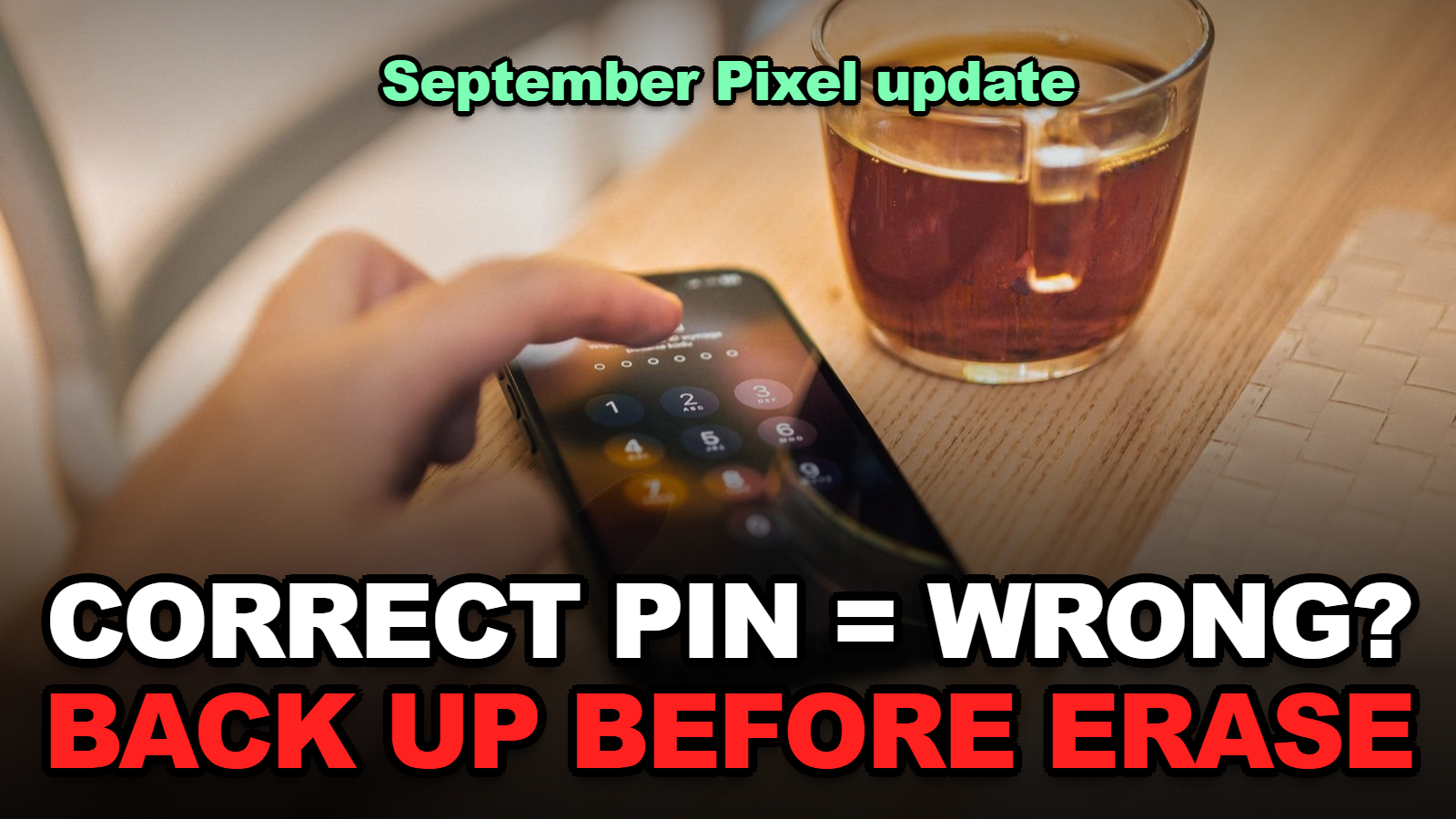
Pixel Says Your Correct PIN Is Wrong After the September 2026 Update? What to Try Before You Erase It
Short answer: Some Pixel phones stopped accepting the correct PIN or pattern after the September 2026 update. Google hasn’t published a fix. Don’t restart a phone that still unlocks with your fingerprint. Back it up right away. If you’re already locked out, try the “Too many attempts” timer once. Then check what’s already backed up from a computer. Only then erase the phone. You’ll need your Google account password to set it up again.
You type the same PIN you’ve used for two years, and the phone says it’s wrong after the very first digit.
That’s the bug a small number of Pixel owners have been reporting since the September 2026 Pixel update. Pattern users get it too: the pattern resets after one or two dots, so you can’t even finish drawing it. Android Authority first reported it on September 25, with cases on a Pixel 10 Pro XL and a Pixel 8a. Other outlets have since added the Pixel 8 Pro.
The frustrating part is the official answer. Google’s own “Can’t unlock your Pixel phone” page says the way back in is to erase the phone. So the real job here is getting your data out (or confirming it’s already safe) before you do that.
Contents
- What Is the September 2026 Pixel Lock Screen Bug?
- Still Able to Get In With Your Fingerprint? Do This First
- Can the “Too Many Attempts” Timer Get You Back In?
- How Do You Check What’s Backed Up Before You Erase?
- How Do You Erase a Locked Pixel Safely?
- Which Option Fits Your Situation?
- What Should You Change After You’re Back In?
- Tips
- Warnings
- FAQ
- Sources
What Is the September 2026 Pixel Lock Screen Bug?
The September 2026 Pixel lock screen bug is a reported fault in which some Google Pixel phones reject a correct PIN or pattern after the September update, either reading the first PIN digit as a full entry or resetting a pattern after one or two dots.
It doesn’t seem to be widespread. Android Authority’s writer said their own Pixel 6a recognized the PIN normally after the same update.
What’s been reported so far:
- Pattern locks fail more often than PINs. The first reports were pattern users. At least one PIN user (a Pixel 8a owner) saw the phone accept a single digit and then show “incorrect PIN.”
- The usual fixes didn’t help. One Pixel 10 Pro XL owner tried Safe Mode, restarts, cleaning the screen, and a USB mouse through an adapter. None of it worked.
- Google is aware but quiet. According to Android Authority, Google staff have been contacting affected users in Reddit threads, but the company hadn’t commented publicly as of late September.
When I checked Google’s Pixel help pages on October 4, I found that none of them mention this bug yet. Their only listed route for a phone you can’t unlock is still erasing it.
Still Able to Get In With Your Fingerprint? Do This First
If a Pixel still unlocks with your fingerprint or face after the September 2026 update, avoid restarting it, because Android asks for your PIN, pattern, or password after a restart before biometrics will work again.
This is the window most people waste.
A restart, a battery that hits 0%, or an automatic overnight update can each put you back at the PIN screen. Then you’re stuck. While you’re still inside:
- Plug the phone in so it can’t die mid-backup.
- Run a backup now. Go to Settings > System > Backup and tap Back up now. Google’s backup page lists app data, call history, contacts, settings, and SMS among what gets saved.
- Open Google Photos and make sure backup says it’s complete. Photos and videos are backed up separately from the device backup.
- Copy anything that isn’t in the cloud, like downloads or voice recordings, to a computer with a USB cable.
- Switch your screen lock type in Settings > Security & privacy. Reports so far hit pattern users most, and one affected owner moved to a PIN afterward.
Then leave it alone until Google ships a fix.
Can the “Too Many Attempts” Timer Get You Back In?
One Pixel 8a owner affected by the September 2026 lock screen bug reportedly got back in by entering wrong codes until the “Too many attempts” timeout appeared, waiting for the timer to run out, and then entering the correct PIN.
It’s one report. It’s also free to try, and it doesn’t erase anything.
Enter the code slowly. Then let the lockout timer run out completely before trying again. Don’t keep hammering at it after a couple of rounds; the timeouts get longer each time.
Honestly, if it hasn’t worked after two cycles, it probably won’t.
How Do You Check What’s Backed Up Before You Erase?
Before erasing a locked Pixel, check from a computer what your Google account already holds: Google Photos at photos.google.com shows your most recent backed-up pictures, and Google’s backup page explains that device backups are tied to the same Google account.
You can’t create a new backup on a phone you can’t unlock. You can only find out how bad the damage will be.
- Photos: sign in at photos.google.com and scroll to the newest images. If last weekend’s pictures are there, your camera roll is safe.
- Contacts: open contacts.google.com. If they sync to your Google account, they’ll come back on their own.
- Messages, call log, settings: these come from the device backup. Google’s help page says data backed up to your Google account can be restored when you set the phone up again.
- Local-only files: downloads, offline music, and anything in apps without cloud sync are the things that will be gone.
When I compared Google’s two help pages, I noticed that the unlock page warns erasing removes “apps, photos, and music,” while the backup page is what explains the restore side. Read them together, not just the scary one.

How Do You Erase a Locked Pixel Safely?
Google lists two ways to erase a Pixel you can’t unlock: remotely through Find Hub if the phone is on, online, and signed in to a Google account, or locally by booting into Recovery Mode with the power and volume buttons and choosing “Wipe data/factory reset.”
Before either one, make sure you know your Google account password.
That’s not optional. Google’s Factory Reset Protection means a reset phone asks for the Google account that was on it before it will finish setup. If you’ve forgotten that password, sort it out on a computer first.
Option 1: Find Hub (remote)
- On a computer or another phone, sign in to Find Hub with the same Google account.
- Select the locked Pixel.
- Choose Factory reset device and confirm.
Option 2: Recovery Mode (on the phone)
- Turn the phone off.
- Hold Power and Volume Down until the bootloader screen appears.
- Use the volume keys to reach Recovery Mode, then press Power.
- When you see “No command,” hold Power and tap Volume Up once.
- Pick Wipe data/factory reset, then confirm with Power.
Here’s where people get tripped up: after the reset, set up the phone with the same Google account and pick the backup when it’s offered. Skipping that screen means starting from a blank phone.
Which Option Fits Your Situation?
The right move for a Pixel hit by the September 2026 unlock bug depends on one thing: whether any unlock method still works right now.
| Your situation | What to do | Data risk | Time |
|---|---|---|---|
| Not affected yet, September update installed | Back up now; consider switching from pattern to PIN | None | 10–20 minutes |
| Fingerprint or face still works | Don’t restart; back up and copy files off | Low if done today | 20–60 minutes |
| Locked, PIN fails after one digit | Try the lockout-timer trick up to twice | None | 5–30 minutes |
| Locked, nothing works | Check photos.google.com, confirm Google password, then erase | Anything not backed up is lost | 1–2 hours with restore |
| Phone has data you can’t lose | Wait for a Google fix and contact Pixel support first | Phone unusable while you wait | Unknown |
Table: based on Google Pixel Help pages and the user reports Android Authority described, October 4, 2026. Times are rough estimates, not Google figures.
That last row is a real choice. If there’s something irreplaceable on the phone, waiting a few weeks for a patch may beat erasing today.
What Should You Change After You’re Back In?
After regaining access to a Pixel affected by the September 2026 lock screen bug, turn on automatic Google backup and keep a second unlock method enrolled, so a single failed input method can’t lock you out again.
- Enroll a fingerprint and, if your model supports it, Face Unlock. They won’t help right after a restart, but they cover the rest of the time.
- Leave Backup by Google One switched on. Check Settings > System > Backup once a month to see the last backup time.
- Hold off on beta builds until Google confirms a fix in its monthly update notes.
Thinking about replacing the phone anyway? Our Pixel 11 upgrade guide covers whether it’s worth it from a Pixel 9 or 10.
Tips
- Keep your Google account recovery phone and email current. Factory Reset Protection depends on that account.
- Write your screen-lock PIN somewhere safe. Restoring some backups may ask for the old phone’s lock.
- Use a USB cable to copy large videos to a computer. It’s faster than waiting for a cloud upload.
- Apple users with a similar post-update headache can see our iOS 27.0.1 Face ID restart fix.
Warnings
- Erasing a Pixel deletes everything stored only on the phone. There’s no undo.
- Don’t buy “unlock tools” or pay a stranger online to bypass the lock screen. On a Pixel, the legitimate routes are the ones Google lists.
- Don’t try to reset a phone whose Google account password you can’t remember. Factory Reset Protection will block setup.
- Repeated wrong entries add longer and longer lockout timers. Stop after two cycles.
FAQ
Will Google’s October 2026 update fix the Pixel PIN bug?
Google had not confirmed a fix as of October 4, 2026. Check the Pixel update notes on the Google Pixel community before installing, and back up first either way.
Can a Pixel repair shop unlock my phone without erasing it?
No legitimate shop can bypass a Pixel screen lock without erasing the phone. Google’s own help page lists erasing as the only route when you can’t unlock it.
Do I need my old PIN to restore my backup?
You might. Some Pixel backups are protected with the old phone’s screen lock, so keep the PIN or pattern you were using. It was correct; the phone just couldn’t read it.
Sources
- Pixel Phone Help — Can’t unlock your Pixel phone
- Pixel Phone Help — Back up or restore data on your Pixel device
- Android Help — Factory Reset Protection
- Android Authority — Some Pixel users are locked out after the September 2026 update
🔗 Related guides
Fact-checked against Google Pixel Help, Android Help, and Android Authority’s September 25, 2026 report as of October 4, 2026. Google has not publicly confirmed the bug; details may change when a fix ships.